> For the complete documentation index, see [llms.txt](https://docs.inogic.com/llms.txt). Markdown versions of documentation pages are available by appending `.md` to page URLs; this page is available as [Markdown](https://docs.inogic.com/attach2dynamics/windows-tool/sharepoint-security-sync-tool.md).
# SharePoint Security Sync Tool
SharePoint Security Sync Tool (Bulk Migration Tool) enables you to migrate historical data in bulk. It relatively takes less time to migrate records with SharePoint Security Sync Tool.
#### How to use SharePoint Security Sync Tool?
* Download and install SharePoint Security Sync Tool in your system. You can download the tool from [here](https://inogicindia-my.sharepoint.com/:u:/g/personal/storage_inogic_com/EUVHmryKApJLkoC9mKMqC2cBksLV6He2PvgWv7ozz6pMOg?e=jLIWrf\&download=1).
* After installing, click on the SharePoint Security Sync Tool icon to open the tool.
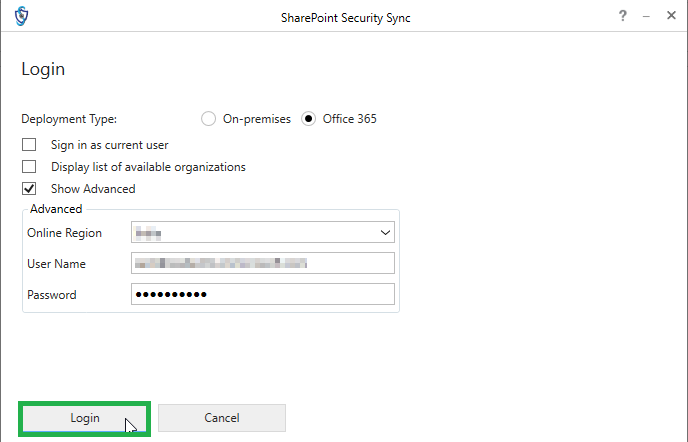
* Select deployment type as **‘Office 365’** and fill the following details in given fields.
* **Display list of available organizations:** Enable the checkbox in case of multiple organizations in CRM
* **Online Region:** Select the respective region
* **Username:** Use the CRM username
* **Password:** Use the CRM password
* After filling all the details click on **‘Login’**.
#### SharePoint Security Sync Tool Functions
Once logged in, you will find details of all the configured connectors. Select any one of the connectors for which you want to migrate historical documents/data. If more connectors are added then click on the **‘Refresh’** button on the top to update connector details or to reflect any modifications in configuration.
Now let’s explore the data migration feature in the SharePoint Security Sync Tool.
* First, click on the respective SharePoint Site/ Storage Name displayed on Interface.
* After clicking on the respective SharePoint Site/Storage Name, the **Data Migration** tab will be displayed**.**
This tab is to perform the **Data Migration** i.e., Move/ Copy the past attachments from Dynamics CRM to the configured connector i.e. cloud storage. You are required to fill the following fields for smooth migration of attachments:
* **Migrate:** This specifies whether you are doing Bulk Migration for Activities, Notes or Sales Literature.
* **Entity:** Select the entity for which you want to migrate attachments.
* **Action:** Select either **'Copy' or 'Move'.**
* **From:** Enter the date from which you want to start the migration job.
* **To:** Enter the end date till which you want to do the migration.
* **Proceed: Once you’ve filled in the required criteria, click to begin migrating your data.**
{% hint style="info" %}
**Note**: The tool name is displayed globally as SharePoint Security Sync. However, you can use the tool for Attach2Dynamics as well. Please ignore the displayed tool name; all data migration functionalities will work as expected for Attach2Dynamics.
{% endhint %}