# Set up Security
The first step is to assign security roles to users.
LiveChat4Dynamics has the following security roles:
{% tabs %}
{% tab title="LiveChat4Dynamics Administrator" %}
The user with the **LiveChat4Dynamics** **Administrator** security role is in charge of setting up the solution. They can Create Configurations, Record Types, Customize Templates, etc. with Dynamics 365 CRM.
The user with the LiveChat4Dynamics **User** security role can only message the customer and convert them into lead, opportunity, etc.
{% endtab %}
{% tab title="LiveChat4Dynamics User " %}
The user with the **LiveChat4Dynamics** **Administrator** security role is in charge of setting up of the solution. They can Create Configurations, Record Types, Customize Templates, etc. with Dynamics 365 CRM.
The user with the LiveChat4Dynamics **User** security role can only message the customer and convert them into lead, opportunity, etc.
{% endtab %}
{% endtabs %}
{% hint style="info" %}
**Note:**
* It is necessary to assign any one of the above security roles to use the LiveChat4Dynamics solution.
* The System Administrator has all the rights that the LiveChat4Dynamics administrator has.
{% endhint %}
Here are the steps to assign security roles to CRM users:
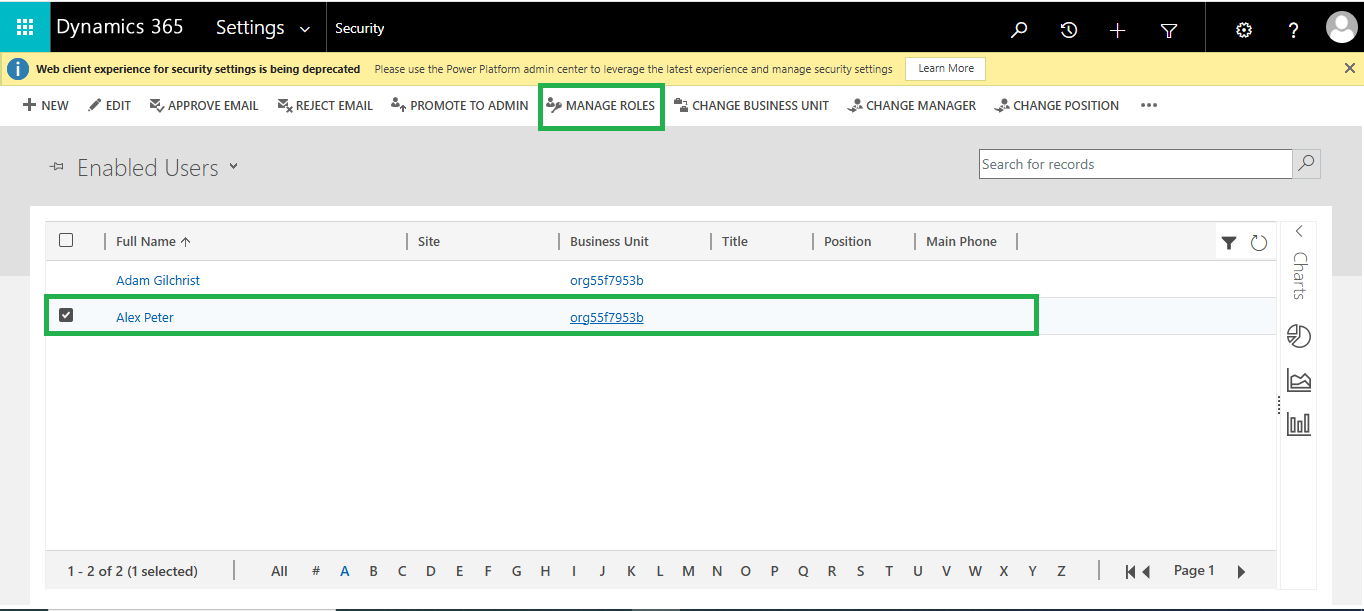
* Go to **Advanced Settings -> Settings -> Security**.
* Select **Users.**
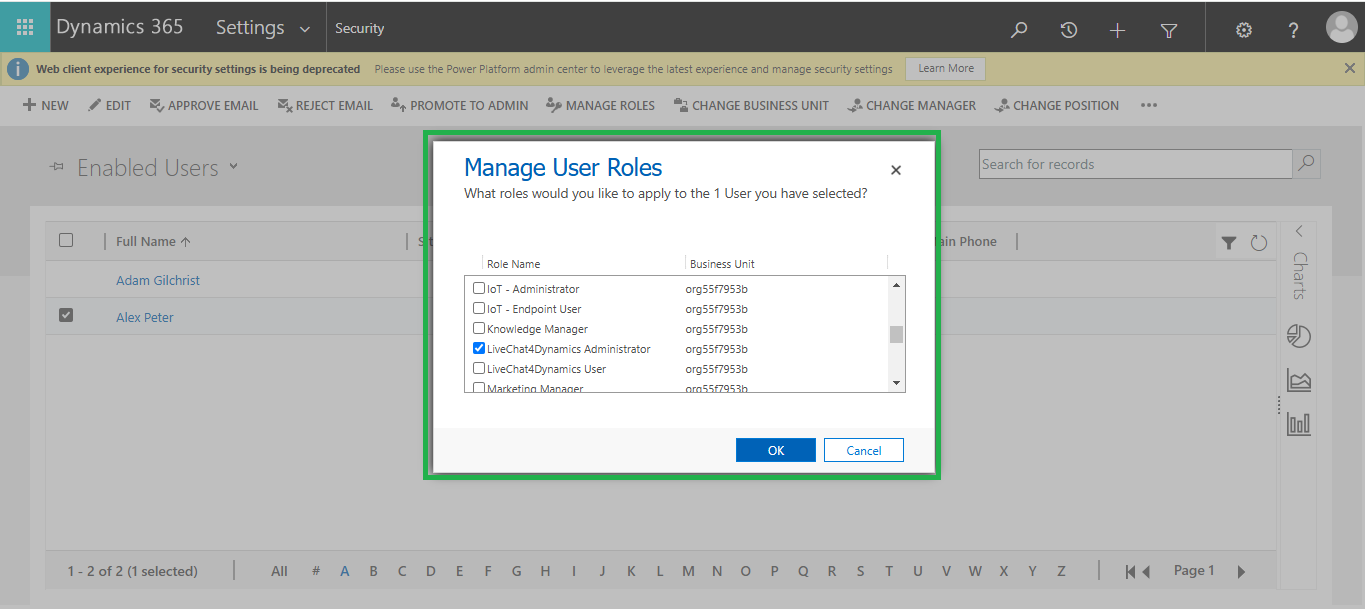
* Select user -> click on **MANAGE ROLES.**
* Click on any one of the LiveChat4Dynamics security roles as per your business requirement -> Click **OK**.
{% hint style="success" %}
For further queries, reach out to us at [crm@inogic.com](mailto:crm@inogic.com)
{% endhint %}