> For the complete documentation index, see [llms.txt](https://docs.inogic.com/llms.txt). Markdown versions of documentation pages are available by appending `.md` to page URLs; this page is available as [Markdown](https://docs.inogic.com/map-my-relationships/features/tree-view-visualization/custom-label/cluster-custom-name-in-tree-view.md).
# Cluster Custom Name in Tree View
The Cluster Custom Name feature allows you to override the system-generated cluster labels (such as *Gender – Male*, *Gender – Blank*, etc.) and replace them with your own custom text.\
This is especially useful when grouping records by fields such as Gender, Region, Category, or Status, allowing organizations to use terminology that matches their business needs, enhances clarity, or maintains confidentiality.
When enabled, the Tree View displays your custom cluster label instead of the field’s actual value. This results in cleaner, more meaningful, and more user-friendly grouping nodes.
How It Works (Example)
Originally, grouping by Gender produces nodes like:
* Gender – Male
* Gender – Blank
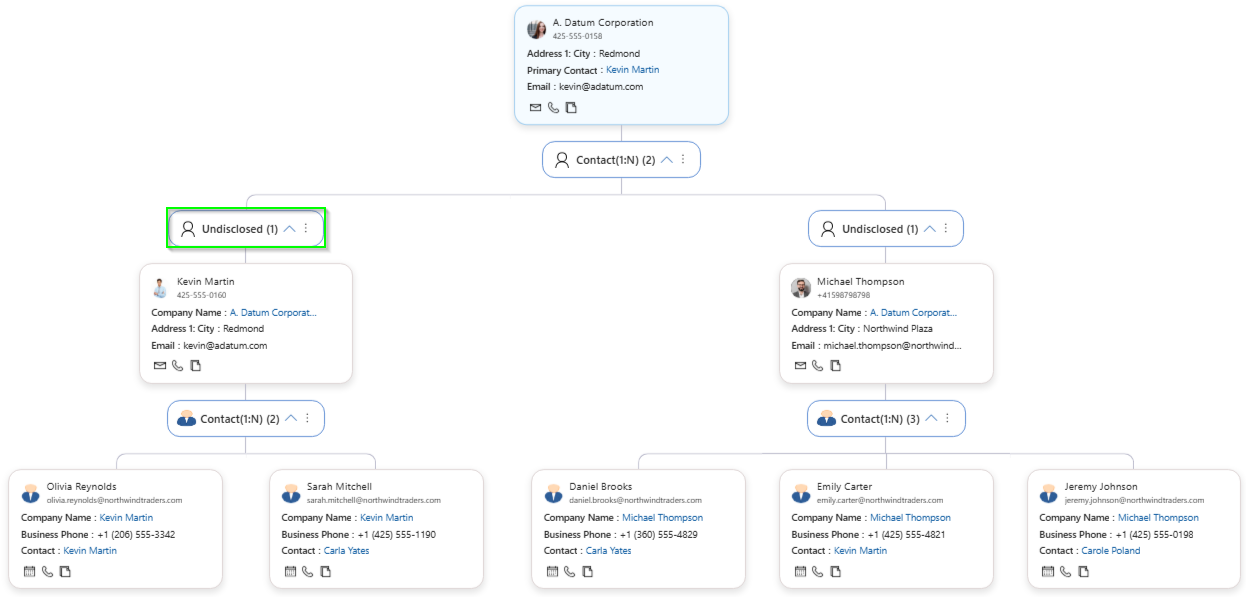
By applying a Cluster Custom Name such as “Undisclosed”, the Tree View replaces both groups with the custom label *Undisclosed*, giving a unified and simplified representation.
### Step-by-Step Guide to Configure Cluster Custom Name in Tree View
#### 1. Open Entity Configuration
Navigate to:\
Settings → Map My Relationship App Entity → Configurations → Open the relationship record (e.g., contact\_customer\_accounts)
#### 2. Locate the Cluster Settings Section
Scroll to the Cluster Settings area on the right side of the configuration page.
#### 3. Enable Custom Cluster Label
Set Use Cluster Custom Label to Yes.\
(Highlighted in green in the second screenshot.)
#### 4. Enter Your Custom Label
In the Cluster Custom Label field, type your preferred label\
(e.g., “Undisclosed”).
This label will replace the standard system grouping labels.
#### 5. Save the Configuration
Click Save to apply your changes.
#### 6. View the Custom Cluster Name in Tree View
Open the Tree View, and you will now see:
* Nodes previously labeled Gender – Male, Gender – Blank, etc.
* Now merged or replaced with the custom label Undisclosed (as shown in the final image).
{% hint style="success" %}
For further queries, reach out to us at
{% endhint %}