> For the complete documentation index, see [llms.txt](https://docs.inogic.com/llms.txt). Markdown versions of documentation pages are available by appending `.md` to page URLs; this page is available as [Markdown](https://docs.inogic.com/marketing4dynamics/features/design-sync-and-send-mailchimp-campaigns-within-dynamics-365.md).
# Design, Sync, & Send Mailchimp Campaigns Within Dynamics 365
With **Marketing4Dynamics**, you can now create, send, track, sync, and analyze Mailchimp campaigns directly within Dynamics 365 CRM. With Dynamics 365 CRM - Mailchimp integration, you can create and manage campaigns directly from Dynamics 365 CRM without switching platforms. As your CRM contacts are synced with Mailchimp, you can easily add recipients and ensure accurate targeting. All campaign activities, engagement metrics, and performance insights are automatically updated, keeping your data consistent. This seamless workflow saves time, enhances efficiency, and enables data-driven decision-making, helping you optimize marketing efforts effortlessly.
Let’s consider you are the Campaign Manager looking to send a marketing campaign from Dynamics 365 CRM, ensure that your CRM is connected to Mailchimp before proceeding.
Now, open your Dynamics 365 CRM environment where Marketing4Dynamics is already configured.
There are two ways to create a campaign.
**From Setup Entity:**
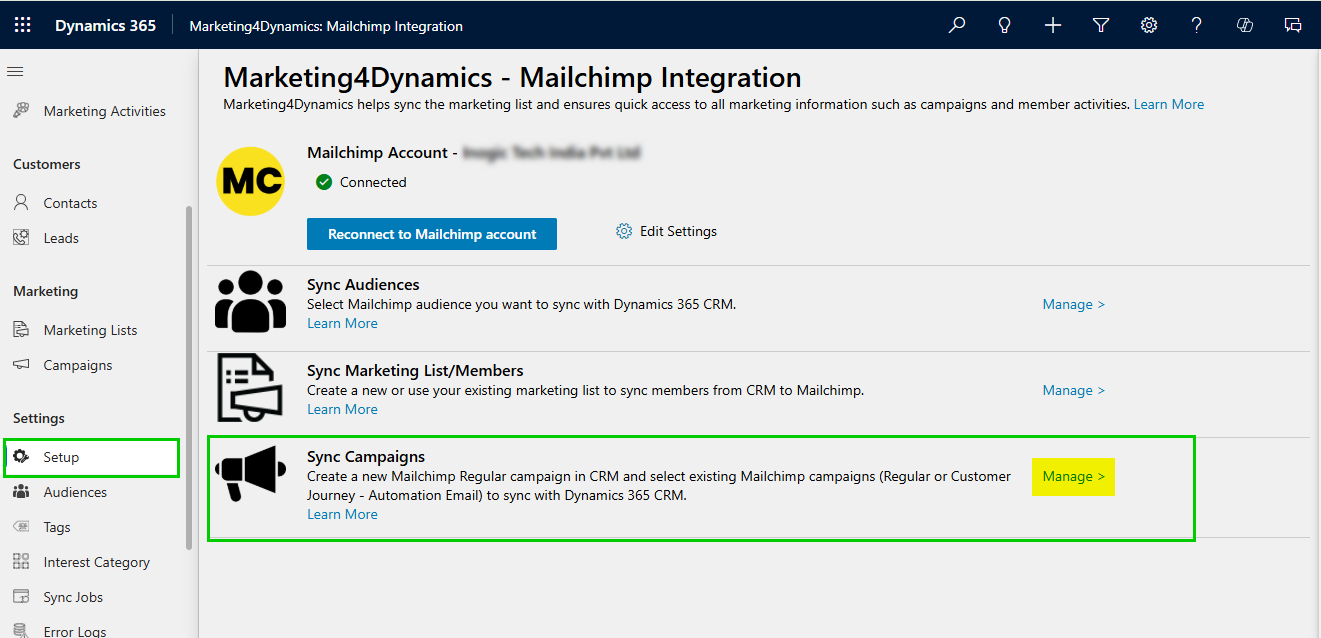
* Navigate to **Marketing4Dynamics** Mailchimp Integration.
* Click on Setup.
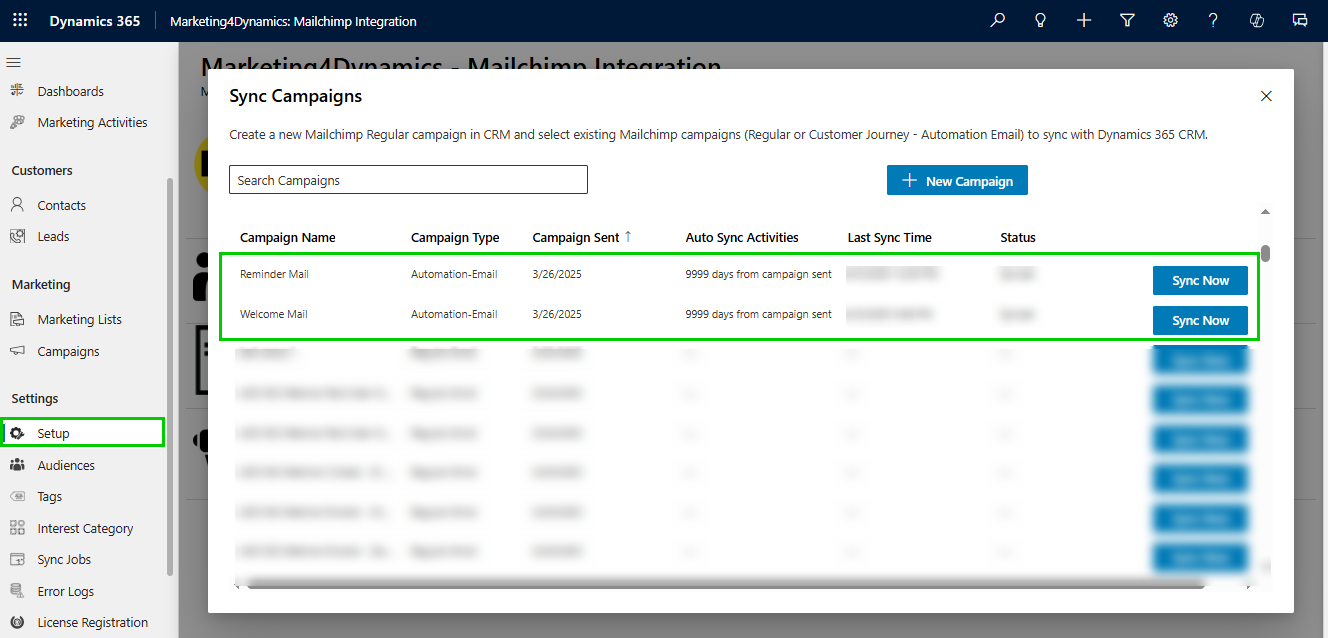
* Go to **“Sync Campaign”** and click on **“Manage”.**
Click on **“+ New Campaign”** to create a new campaign.
**From Campaign Entity:**
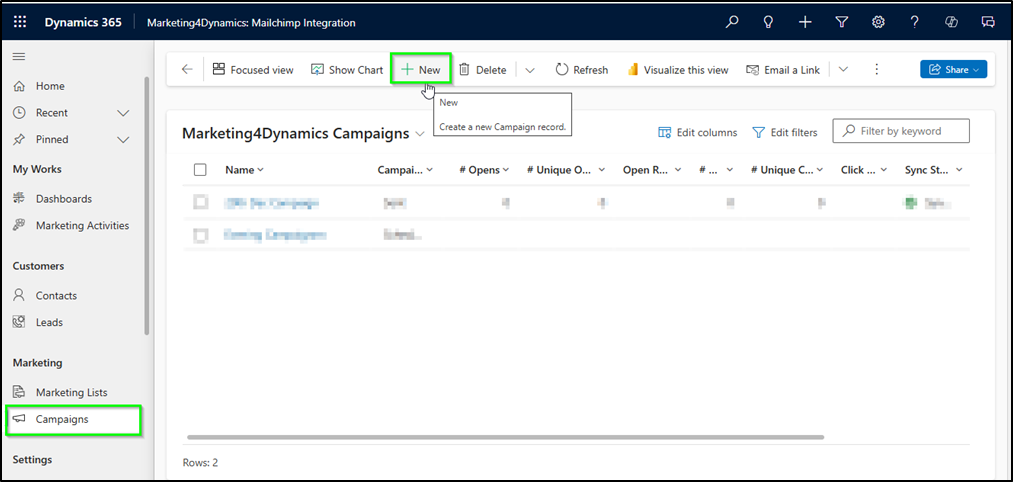
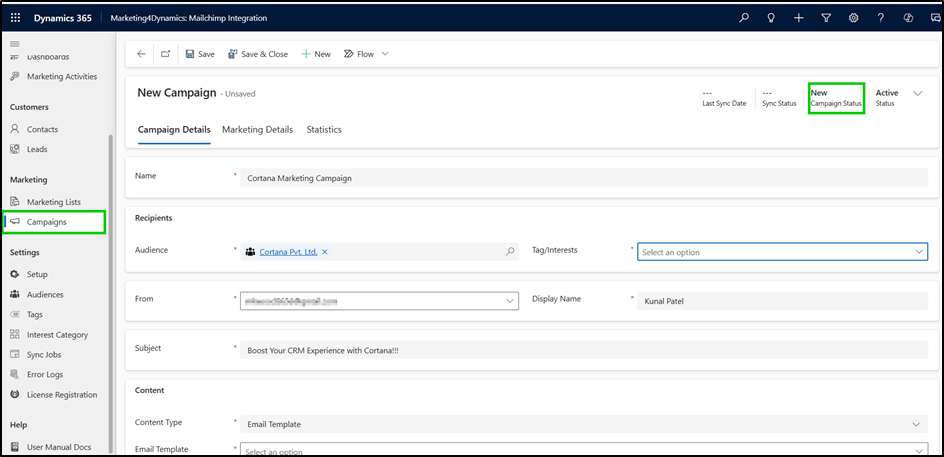
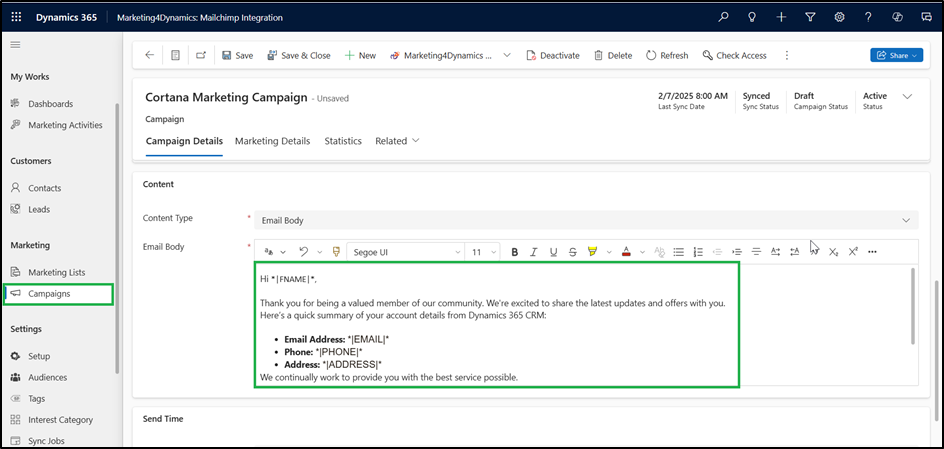
Navigate to the Marketing tab in the sidebar and click on **Campaigns**.
Click on **New** to create a new campaign record.
## **Creating a New Campaign**
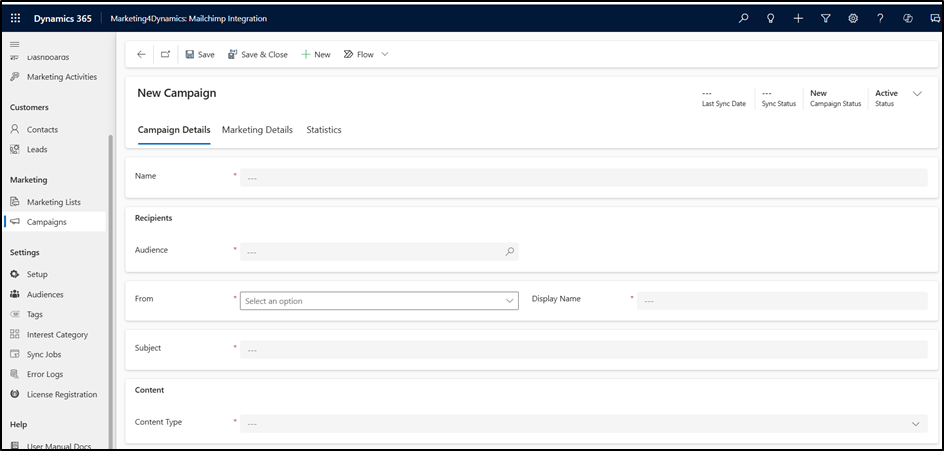
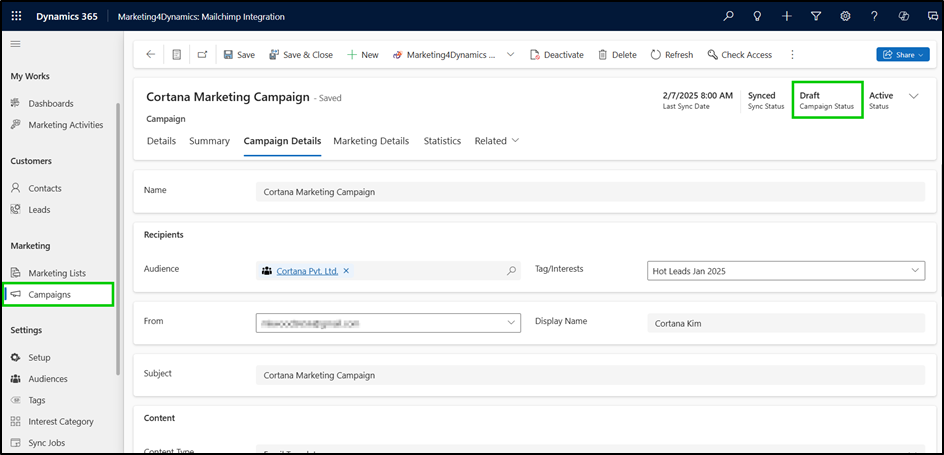
Once you click on New, a campaign details form will open in your CRM. Fill in the required fields for successful campaign execution:
{% hint style="info" %}
**Note:** You can access this form only when using **Marketing4Dynamics.**
{% endhint %}
* **Name:** Enter a suitable name for your campaign.
* **Audience:** Choose the target audience from your CRM, synced with Mailchimp, to define recipients.
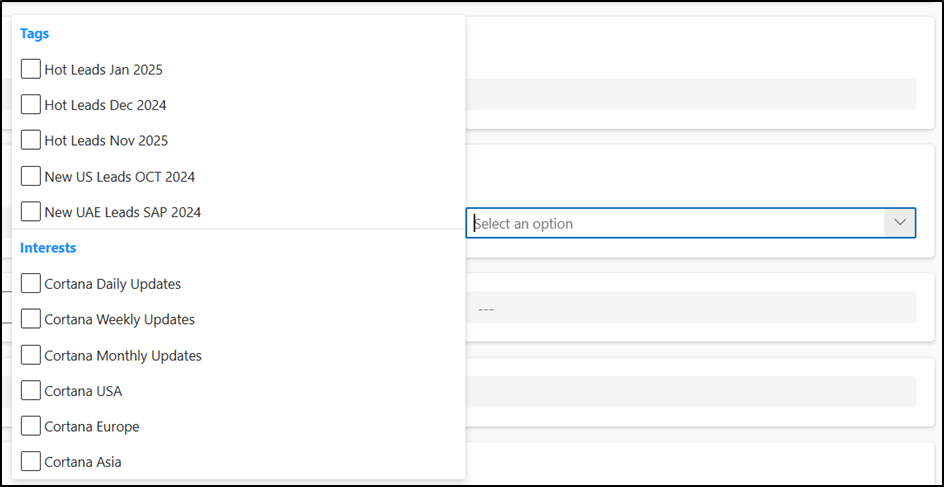
* **Tag/Interest:** Select relevant tags or interests to ensure the campaign reaches the intended audience. You can select only one Tag at a time or can select multiple interests.
* **From:** Choose a valid email address from the dropdown or manually enter an email address from the verified and authenticated domain in Mailchimp.
* **Display Name:** Provide the name to appear as the sender of the campaign.
* **Subject:** Add an engaging subject line for your campaign.
## Defining Campaign Email Content
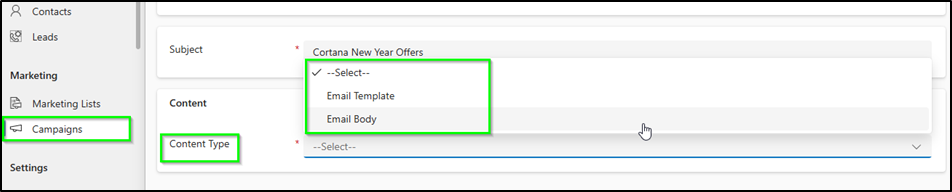
In the campaign details form, you can choose the **Content-Type** for your campaign:
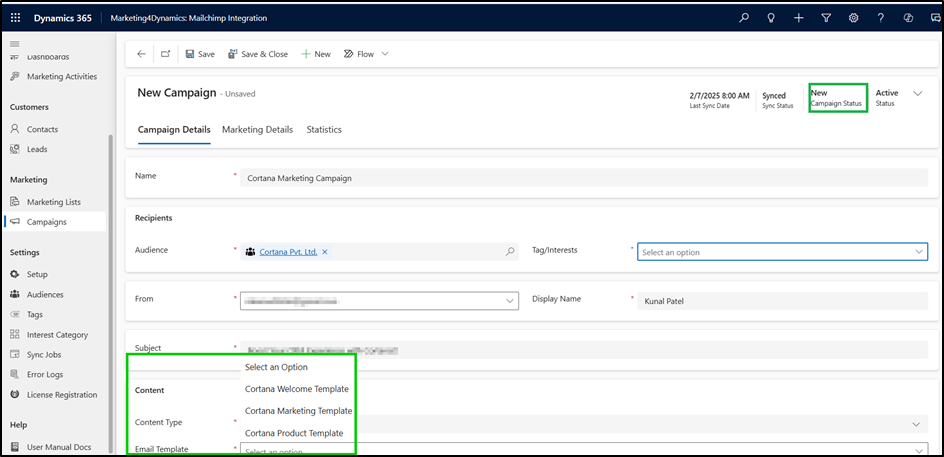
* **Email Template:** Choose an existing or pre-approved email template for your campaign, fetched directly from Mailchimp's email templates.
{% hint style="info" %}
**Note: When creating a Mailchimp campaign from CRM using Marketing4Dynamics, only Plain Text and HTML email templates are supported. Multichannel email templates are not supported due to Mailchimp API limitations.**
{% endhint %}
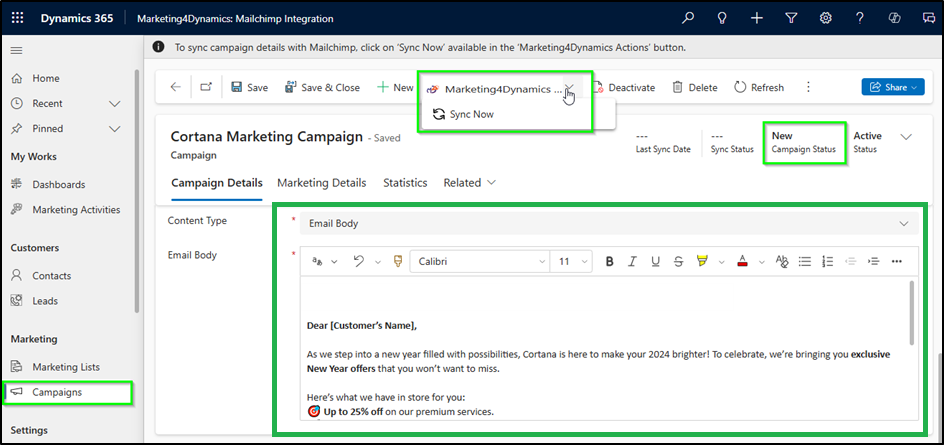
* **Email Body:** Easily create an email body that fits your campaign needs. Use rich text formatting and add your own content. You can also personalize emails with dynamic values from Mailchimp using merge tags.\
\
[Click here](#using-merge-tags-in-mailchimp) to learn how to use Mailchimp Merge Tags.
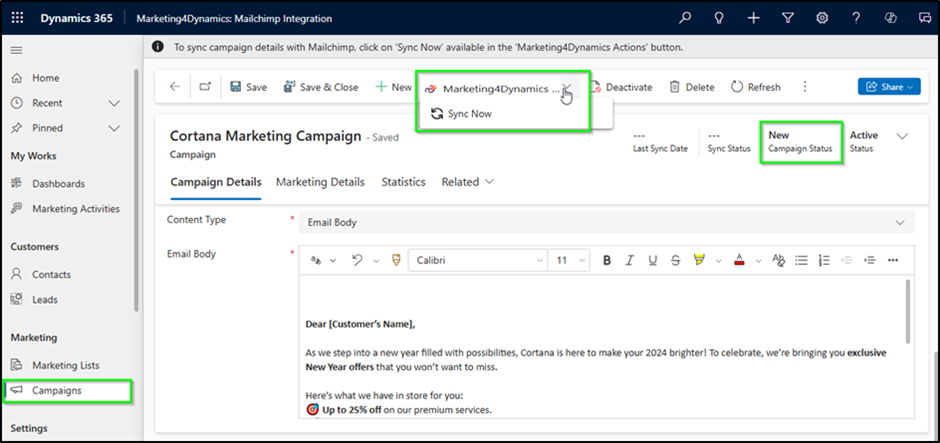
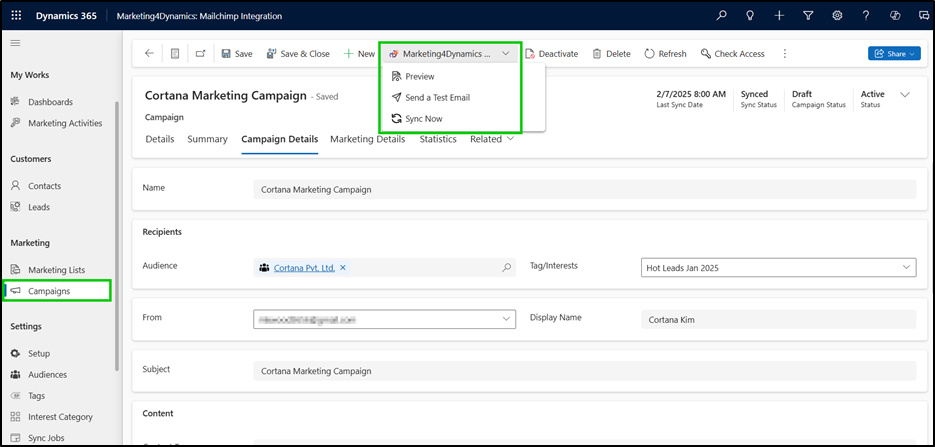
Next, click on the **Marketing4Dynamics** button in the ribbon bar and select **Sync Now.**
The campaign status will update from **"New"** to **"Draft,"** establishing a connection between **Dynamics 365 CRM and Mailchimp.**
Once the syncing process is finished, the campaign details will be automatically updated in Mailchimp.
{% hint style="info" %}
**Note: After syncing, you can still edit the campaign details, and any changes will be automatically reflected in Mailchimp when you click "Save". Just ensure that your campaign status is set to Draft before making any changes.**
{% endhint %}
## **Using Merge Tags in Mailchimp**
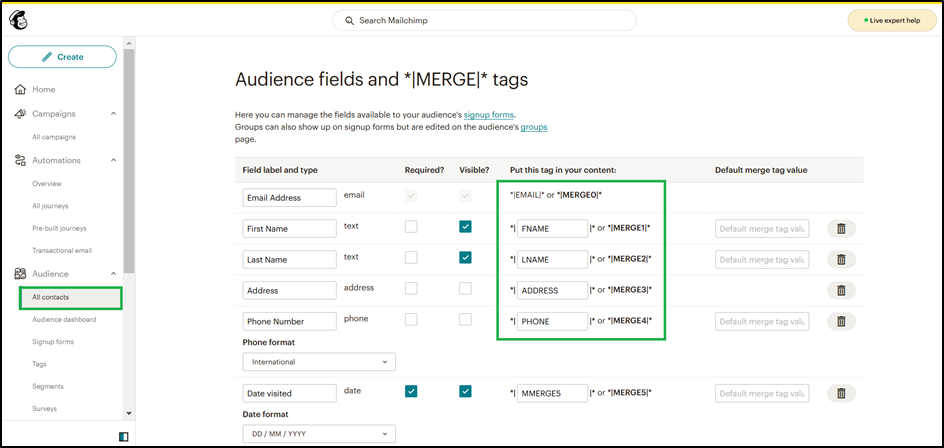
1. In Mailchimp, your audience contains fields that hold information about your contacts.
2. Each audience field has a unique merge tag. A merge tag looks like a snippet of text wrapped in special characters: \*|EXAMPLE|\*
1. When you add a merge tag to your content, Mailchimp automatically replaces it with the information stored in the corresponding audience field.
For instance, if you use the \*|EMAIL|\* merge tag, Mailchimp will insert the email address of each subscriber wherever you’ve placed the merge tag.
## **Preview Emails Before Sending Campaigns**
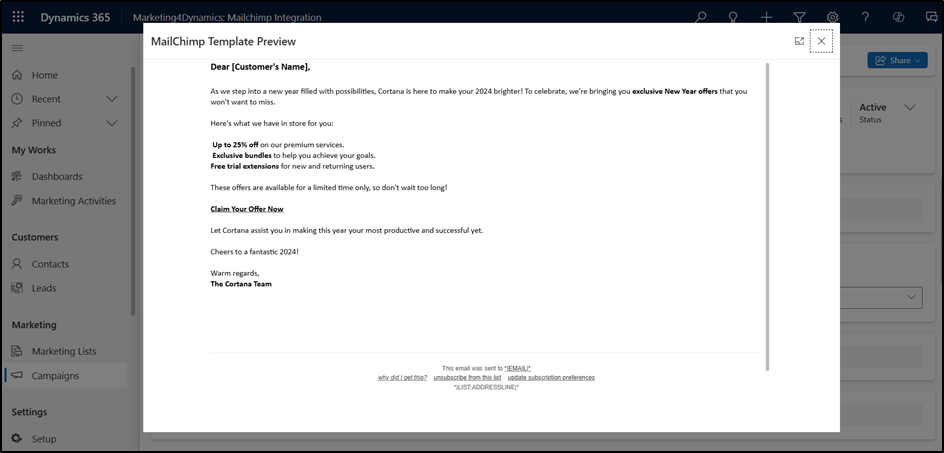
Ensure your campaign emails are flawless before sending or scheduling them by utilizing the **"Preview"** button present under the Marketing4Dynamics button.
This allows you to review the email content, layout, and design exactly as your recipients will see it. By catching potential errors or making last-minute tweaks, you can ensure your emails deliver the intended impact and maintain a professional appearance.
{% hint style="info" %}
**Note: The Preview button will be available only after executing “Sync Now” and when the campaign status changes from New to Draft.**
{% endhint %}
It will display the preview of mail as shown below:
## **Test Mail Delivery with "Send a Test Email"**
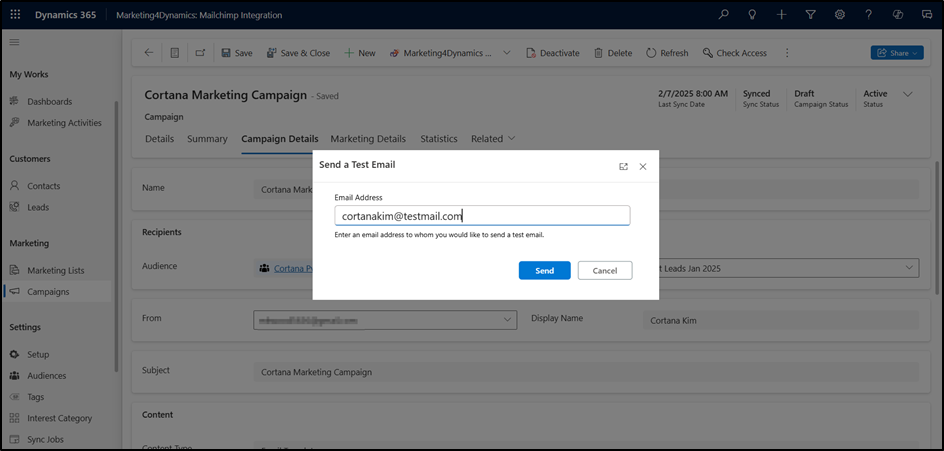
Ensure reliable email delivery by using the **"Send a Test Email"** button present under the Marketing4Dynamics button.
This allows you to verify the accuracy of email settings and configurations by sending a test email to a specified recipient. It helps identify and resolve any potential issues before sending actual emails, ensuring smooth communication and preventing errors in live email interactions.
{% hint style="info" %}
**Note: The Send a Test Email button will be available only after executing “Sync Now” and when the campaign status changes from New to Draft.**
{% endhint %}
## **Send/Schedule Email Campaign:**
You can execute the campaign as per your date and time requirements.
{% hint style="info" %}
**Note: The Send Time will be available only after executing “Sync Now” and when the campaign status changes from New to Draft.**
{% endhint %}
* **Send Now:**
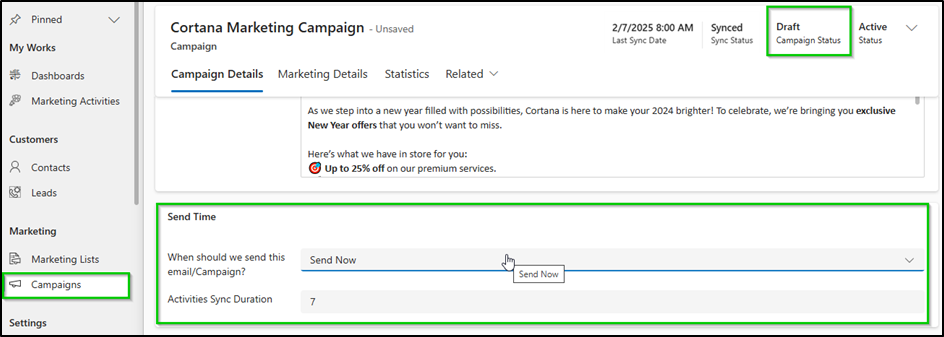
**When Should we send this email/Campaign?:** For immediate execution, simply select the **“Send Now”** option to launch your campaign instantly.
**Activities Sync Duration:** Set how long (from 1 to 365 days) you want to sync campaign activities between Dynamics 365 CRM and Mailchimp. This helps ensure all important engagement data is captured within the selected time frame. A valid sync duration is required before you can send the campaign.
Note that entering a valid sync duration is mandatory to proceed with sending the campaign.
**Execute the Campaign with Save**
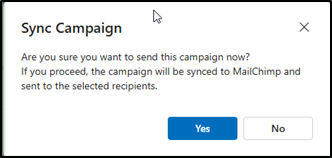
To send the campaign, click on the **Save** button. It will give you a pop up to confirm the decision.
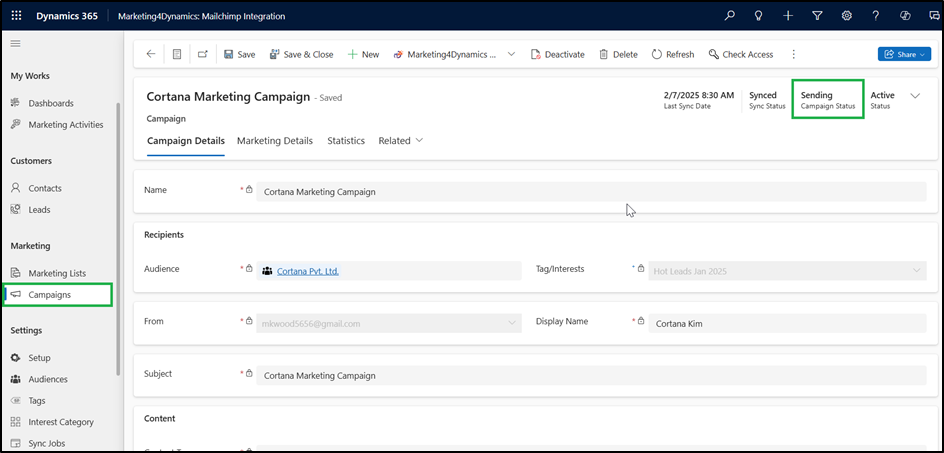
While the campaign is under execution, the status of the campaign will be changed to **“Sending”.**
> **Note: The campaign will remain in the "sending" state until all email addresses are covered. Mailchimp will handle the sending of the emails, and the ideal time for sending each email may vary by 45 minutes in Mailchimp.**
{% hint style="info" %}
**Note: Please click on refresh to fetch the latest status of the campaign from Mailchimp.**
{% endhint %}
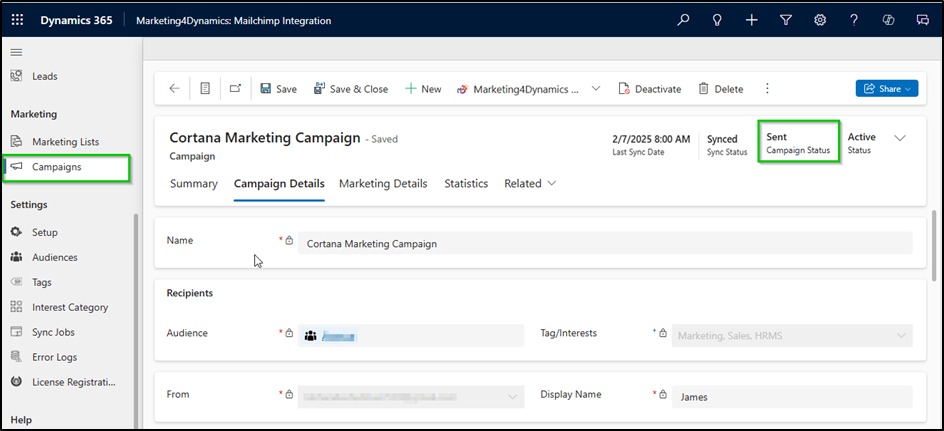
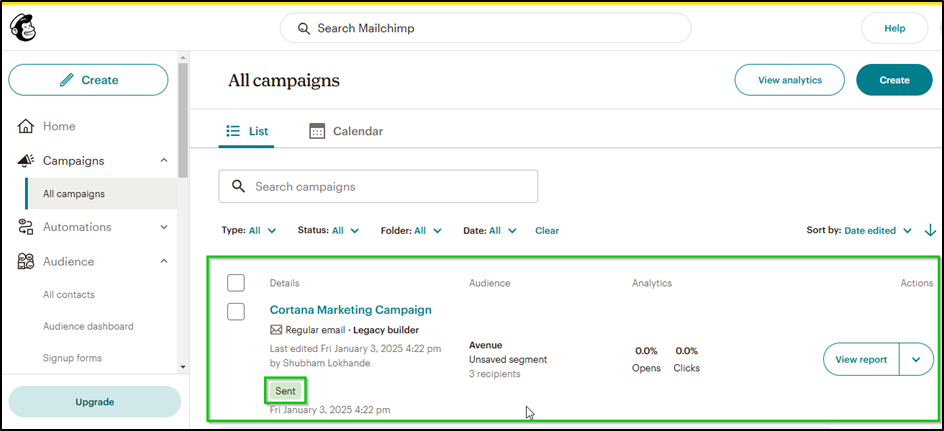
Once execution is completed, the status of the campaign will be changed to **“Sent”.**
The campaign status will also be reflected in Dynamics 365 CRM, ensuring real-time synchronization.
* **Schedule Campaign:**
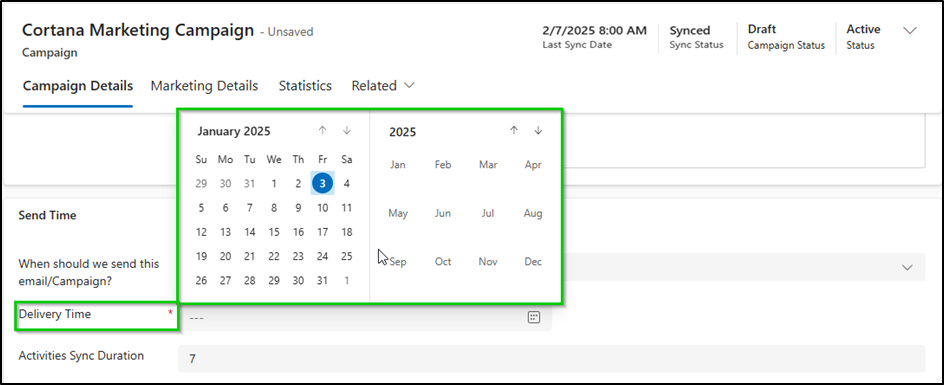
**When Should we send this email/Campaign?:** To schedule the campaign for later, simply select the “Schedule” option to launch your campaign on the designated date and time. Delivery Time: Select the date and time on which you want to execute the campaign on Mailchimp.
**Activities Sync Duration:** Set how long (from 1 to 365 days) you want to sync campaign activities between Dynamics 365 CRM and Mailchimp. This helps ensure all important engagement data is captured within the selected time frame. A valid sync duration is required before you can send the campaign.
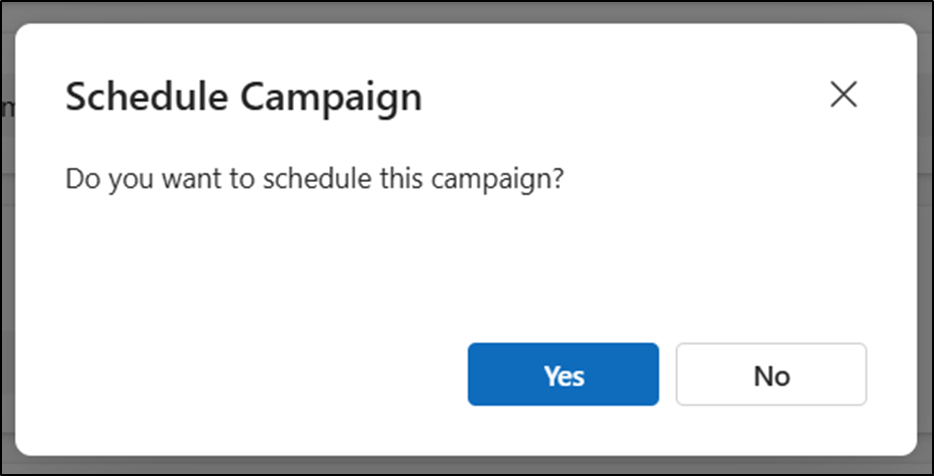
To schedule the campaign, click on the **save** button. A confirmation prompt will appear; simply click Yes to initiate the campaign.
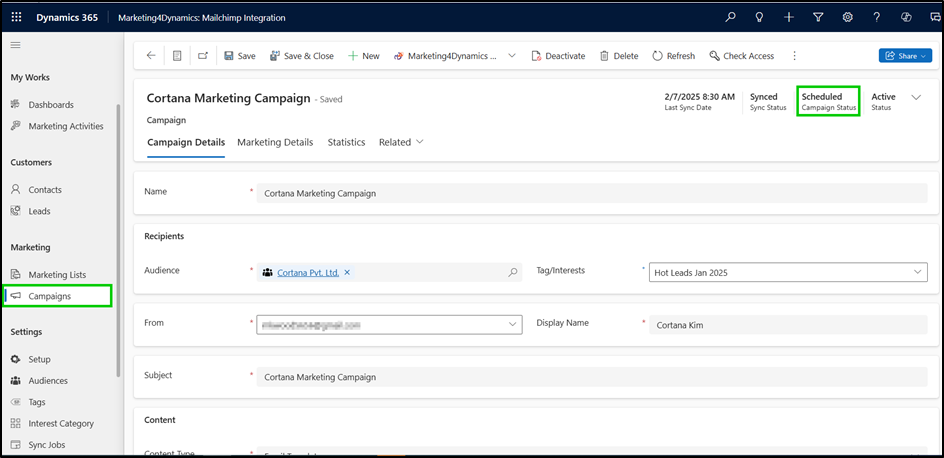
Once the campaign is successfully scheduled, the status will automatically update to **"Scheduled",** ensuring a seamless workflow and timely campaign execution.
* **Time Wrap**
**Send With Timewarp:** Set this to **Yes** to schedule your campaign using Mailchimp’s **Timewarp** feature.
**Timewarp** is a Mailchimp feature that delivers a campaign to recipients based on their **local time zone**, rather than the time zone configured for the Mailchimp account.
* For example, if a campaign is scheduled to be delivered at **9:00 AM** in New York, recipients on the U.S. West Coast would normally receive it at **6:00 AM**. With Timewarp enabled, the campaign will instead be delivered at **9:00 AM in each recipient’s respective**
{% hint style="info" %}
**Note:** Time Warp campaigns should be scheduled at least 24 hours in advance.
{% endhint %}
## **Campaign Performance Tracking**
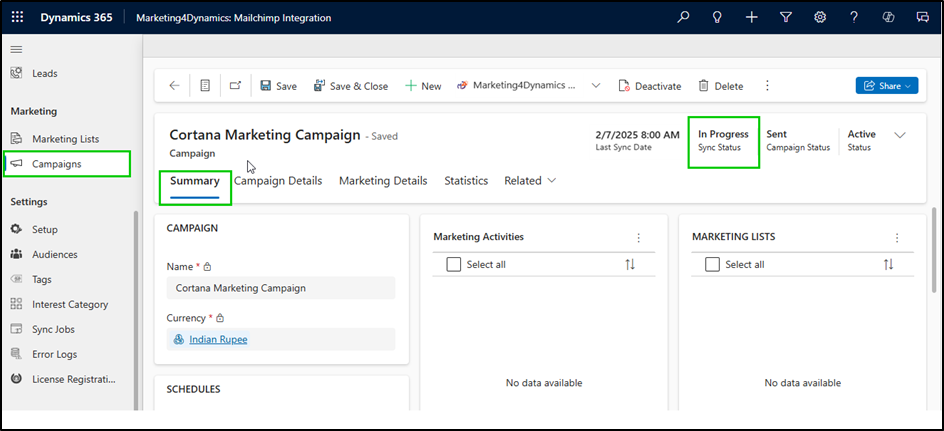
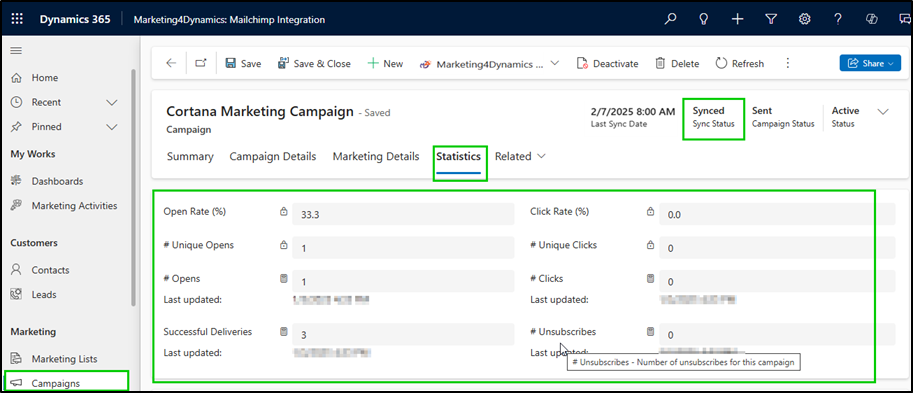
Marketing4Dynamics provides users with a comprehensive performance matrix to evaluate the effectiveness of their marketing campaigns. By syncing campaign activities, users can ensure that their CRM data aligns seamlessly with their marketing platform. Simply navigate to the **Marketing4Dynamics** button in the ribbon bar and click on **"Sync Now".** Once the syncing process is complete, the Sync Status updates to **“Synced”,** confirming the successful integration.
The campaign performance data, including key metrics such as email open rates, click-through rates, and overall engagement, becomes readily accessible under the **Statistics** tab as shown below:
This feature empowers businesses to gain actionable insights, optimize future campaigns, and enhance their marketing ROI with ease.