# Set up Security

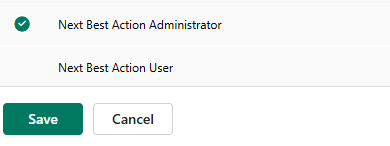
**Next Best Action** has the following security roles:

{% tabs %}
{% tab title="Next Best Action Administrator" %}
The Next Best Action Administrator can configure and modify Next Best Action settings as needed.
{% endtab %}

{% tab title="Next Best Action User " %}
\
The Next Best Action User can access and use the recommendations generated by the system and take actions on records. They cannot create or modify configurations.
{% endtab %}
{% endtabs %}

{% hint style="info" %}
**Note: It is necessary to assign any one of the above security roles to use Next Best Action solution.**
{% endhint %}

### Using Power Platform

Here are the steps to assign security roles to CRM users:<br>

* Go to **Advanced Settings** → **System** → **Security** → **Users**.

<figure><img src="https://272130504-files.gitbook.io/~/files/v0/b/gitbook-x-prod.appspot.com/o/spaces%2F-M0QoyqUVI8_HaZ9FOSL%2Fuploads%2Fdl1LI0ht33LHJFx9XEtJ%2Fpower%20platform%201.png?alt=media&#x26;token=7e441569-69b7-4d91-a8c0-8c7f8dab7845" alt=""><figcaption></figcaption></figure>

* Select **user** → **Manage security roles**.

<figure><img src="https://272130504-files.gitbook.io/~/files/v0/b/gitbook-x-prod.appspot.com/o/spaces%2F-M0QoyqUVI8_HaZ9FOSL%2Fuploads%2FzqrHGGo5hAhchUl2wSPD%2Fpower%20platform%202.png?alt=media&#x26;token=c84bcdbc-57c9-46da-921e-9478d0d64f86" alt=""><figcaption></figcaption></figure>

* &#x20;Click on any one of the **Next Best Action** security roles as per your business requirement → Click **Save.**

<figure><img src="https://272130504-files.gitbook.io/~/files/v0/b/gitbook-x-prod.appspot.com/o/spaces%2F-M0QoyqUVI8_HaZ9FOSL%2Fuploads%2FH3bzJb6Ie9En5GbggVcM%2Fpower%20platform%203.png?alt=media&#x26;token=c21eacf1-d9b2-4db0-9c9d-5bf7931af8fe" alt=""><figcaption></figcaption></figure>

### Using Classic UI

Here are the steps to assign security role to users.<br>

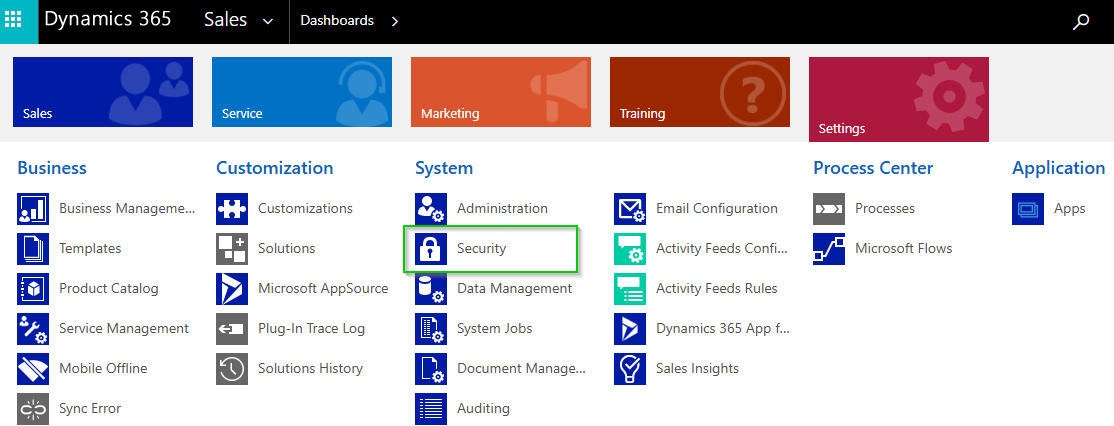
* Go to **Advanced Settings** --> **Settings** --> **Security**.

<figure><img src="https://272130504-files.gitbook.io/~/files/v0/b/gitbook-x-prod.appspot.com/o/spaces%2F-M0QoyqUVI8_HaZ9FOSL%2Fuploads%2FR8OEu10X68DrMHOHDXnS%2Fclassic%20ui%201.png?alt=media&#x26;token=942ee6e7-741f-4ecd-897f-63e6e813cf68" alt=""><figcaption></figcaption></figure>

* Select **Users.**

<figure><img src="https://272130504-files.gitbook.io/~/files/v0/b/gitbook-x-prod.appspot.com/o/spaces%2F-M0QoyqUVI8_HaZ9FOSL%2Fuploads%2FSG8tFzw4bohS2SMbQh9j%2Fclassic%20ui%202.png?alt=media&#x26;token=508a25b8-dbd1-4811-8df7-45cd4f45f6eb" alt=""><figcaption></figcaption></figure>

* Select user --> Click on **Manage Roles.**

<figure><img src="https://272130504-files.gitbook.io/~/files/v0/b/gitbook-x-prod.appspot.com/o/spaces%2F-M0QoyqUVI8_HaZ9FOSL%2Fuploads%2F9Wf1EC6Za8qYBaxjwcqq%2Fclassic%20ui%203.png?alt=media&#x26;token=7e99bea2-842c-4685-899c-23645c1953bb" alt=""><figcaption></figcaption></figure>

* Click on any one of the security roles --> Click **Ok**.

<figure><img src="https://272130504-files.gitbook.io/~/files/v0/b/gitbook-x-prod.appspot.com/o/spaces%2F-M0QoyqUVI8_HaZ9FOSL%2Fuploads%2FQ0S2fuepUCYau0hC0X4C%2Fclassic%20ui%204.png?alt=media&#x26;token=ae6e2c5e-934e-4df2-890d-588e56ac91e6" alt=""><figcaption></figcaption></figure>