# Configure Application User

To configure Application user follow the below steps:&#x20;

### **Create an App Registration in Microsoft Entra ID (to obtain the three keys)**

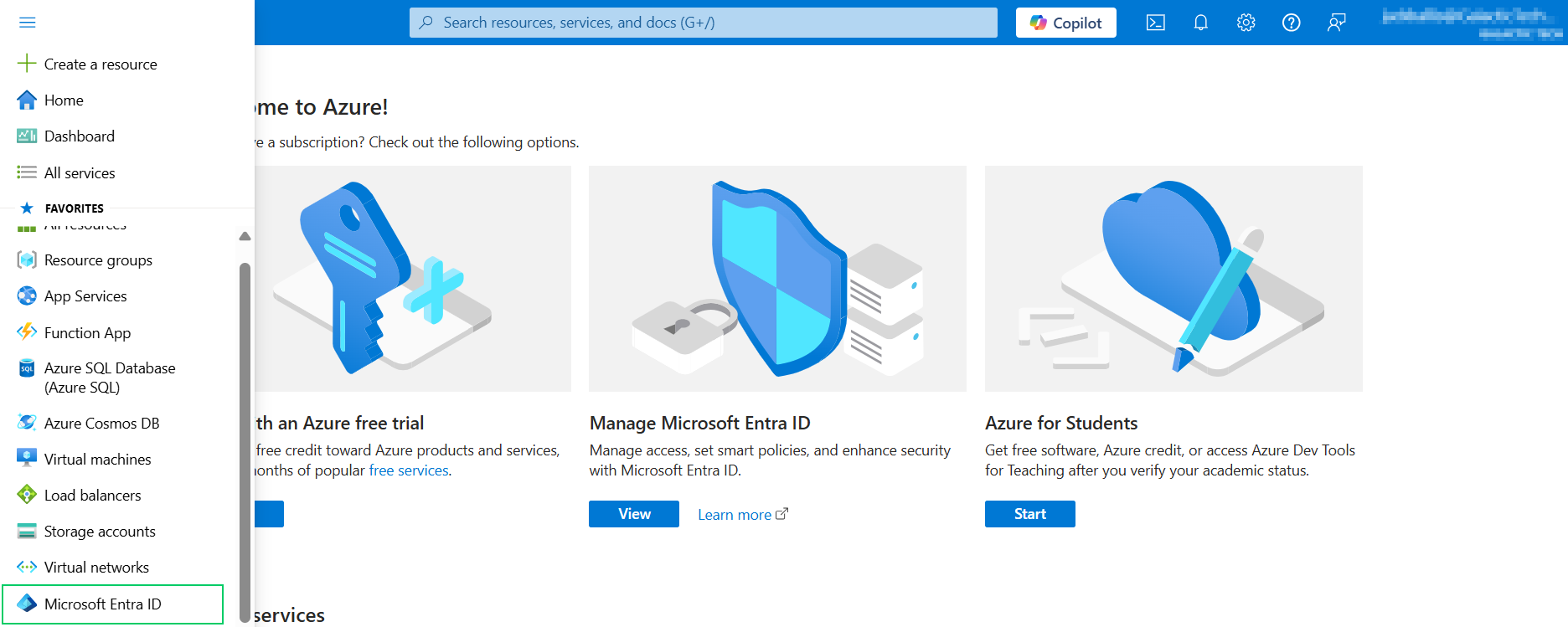
* Open the Azure portal for the **Microsoft Entra ID (Azure AD)** tenant that hosts the Dataverse environment (this may be a different tenant than where the container app is deployed).

<div data-with-frame="true"><figure><img src="https://272130504-files.gitbook.io/~/files/v0/b/gitbook-x-prod.appspot.com/o/spaces%2F-M0QoyqUVI8_HaZ9FOSL%2Fuploads%2F2euSbeRlj1PMd5LOtZkm%2F21.png?alt=media&#x26;token=5ce3f69c-04a5-4fe2-b647-b041ed661440" alt=""><figcaption></figcaption></figure></div>

* Navigate to **Manage → App registrations** and click **New registration.**

<div data-with-frame="true"><figure><img src="https://272130504-files.gitbook.io/~/files/v0/b/gitbook-x-prod.appspot.com/o/spaces%2F-M0QoyqUVI8_HaZ9FOSL%2Fuploads%2Fo7hhSerD2EVfnm8DJ2V0%2F22.png?alt=media&#x26;token=6557d470-70df-40c2-8606-feac97385821" alt=""><figcaption></figcaption></figure></div>

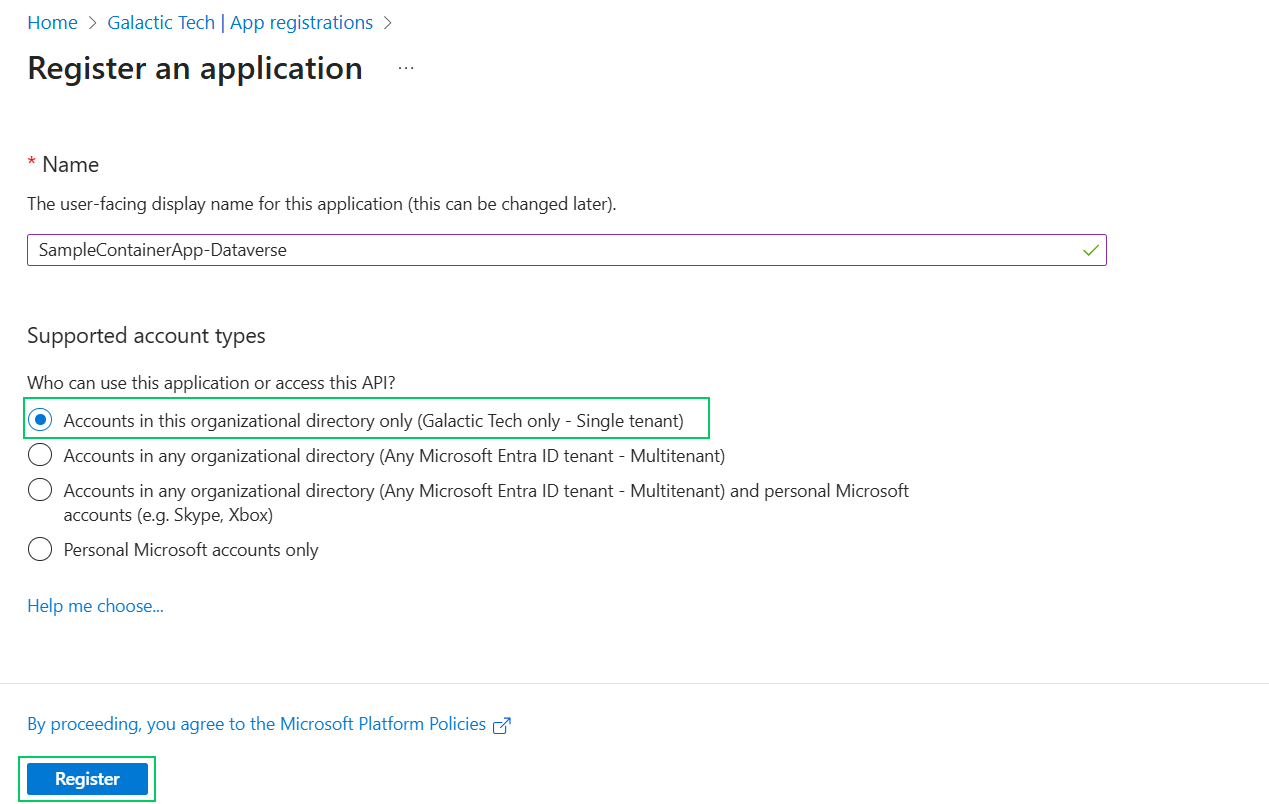
* Enter the **application name** and select the first (default) option for supported account types, then click **Register.**

<div data-with-frame="true"><figure><img src="https://272130504-files.gitbook.io/~/files/v0/b/gitbook-x-prod.appspot.com/o/spaces%2F-M0QoyqUVI8_HaZ9FOSL%2Fuploads%2FbKo8U3oZJezGZOgMVt4m%2F23.png?alt=media&#x26;token=2928d8a2-ec45-4730-80b9-76363f9cec36" alt=""><figcaption></figcaption></figure></div>

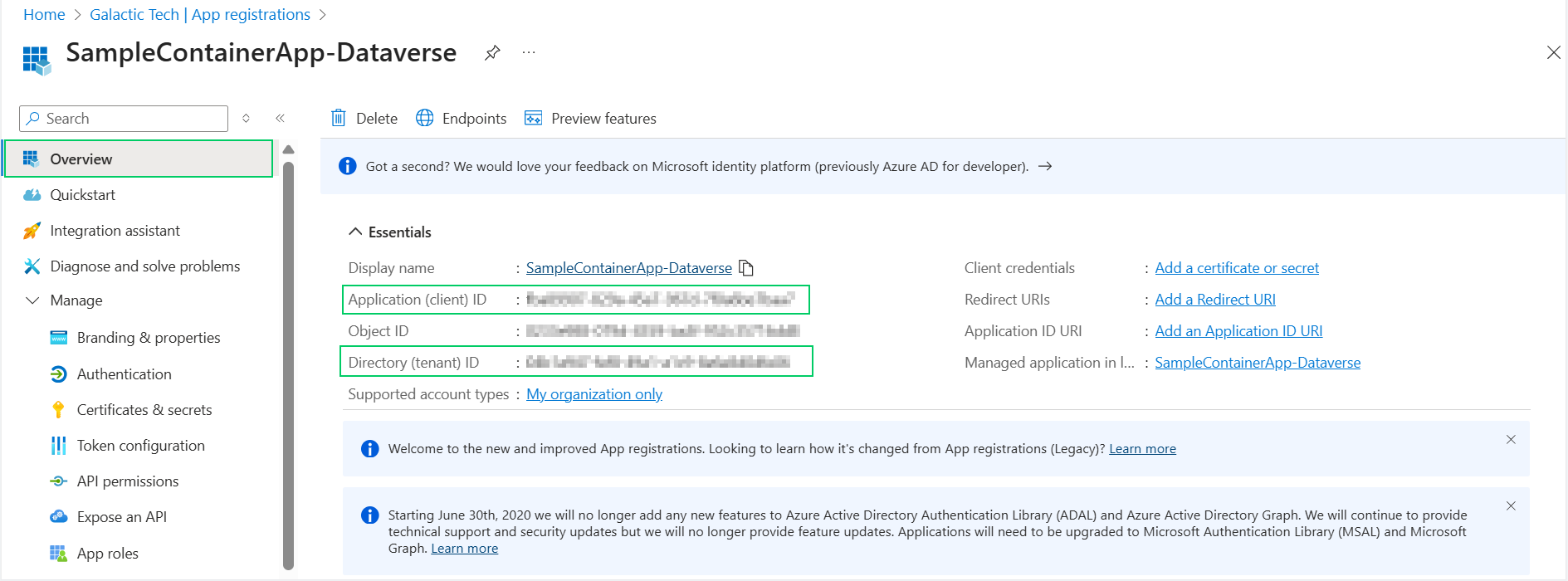
* Copy the Directory (tenant) ID → this becomes d365-tenant-id.
* After the app registration is created:
* Open the application registration and copy the Application (client) ID → this becomes d365-client-id and Copy the Directory (tenant) ID → this becomes d365-tenant-id.\ <br>

  <div data-with-frame="true"><figure><img src="https://272130504-files.gitbook.io/~/files/v0/b/gitbook-x-prod.appspot.com/o/spaces%2F-M0QoyqUVI8_HaZ9FOSL%2Fuploads%2FUE2ZoHIw53Mj4lTU5aTU%2Fp17-img2.png?alt=media&#x26;token=c6ce8028-af7e-477e-b1ca-187307f8c4ec" alt=""><figcaption></figcaption></figure></div>

### **Grant API Permissions for Dynamics CRM**

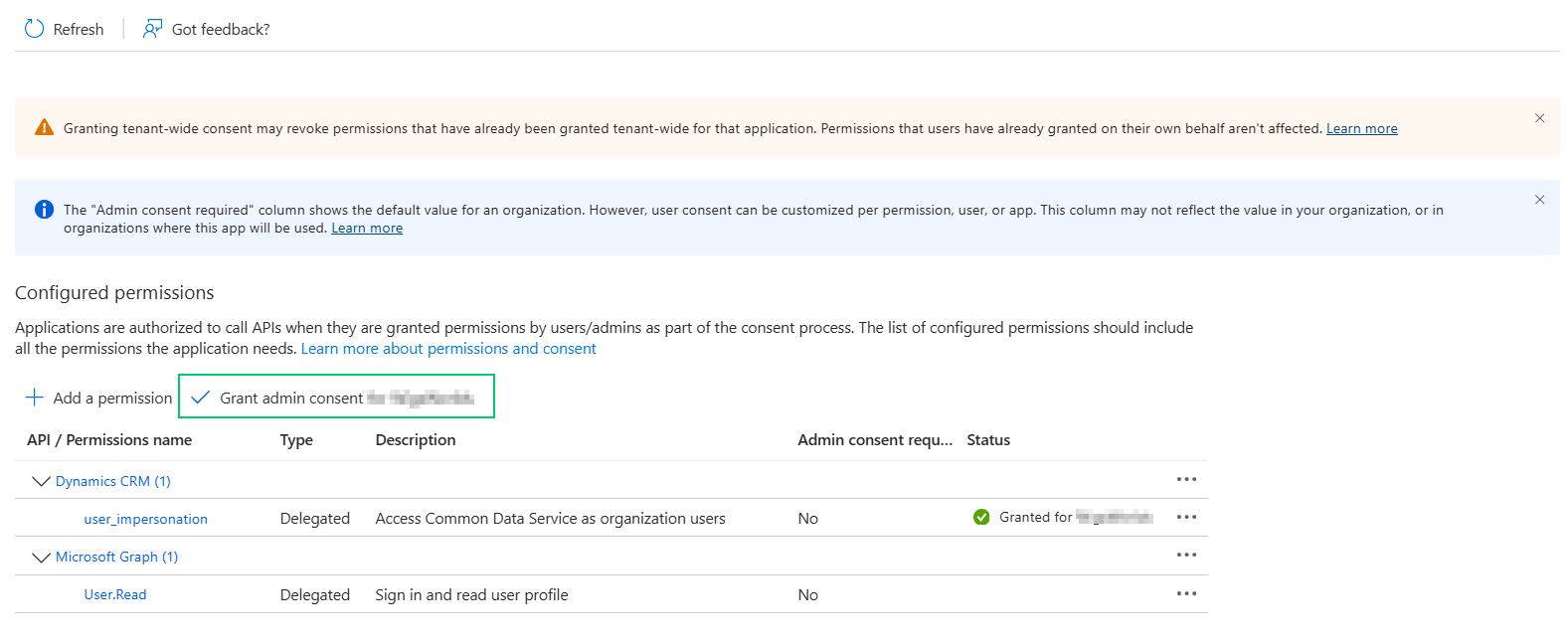
In the app registration, go to Manage → API permissions → Add a permission. Select Dynamics CRM from the API list.

<div data-with-frame="true"><figure><img src="https://272130504-files.gitbook.io/~/files/v0/b/gitbook-x-prod.appspot.com/o/spaces%2F-M0QoyqUVI8_HaZ9FOSL%2Fuploads%2F0PtA9ZlSoki6YaeER6mO%2F25.png?alt=media&#x26;token=c897423e-b614-43cf-a943-bb6e7273c593" alt=""><figcaption></figcaption></figure></div>

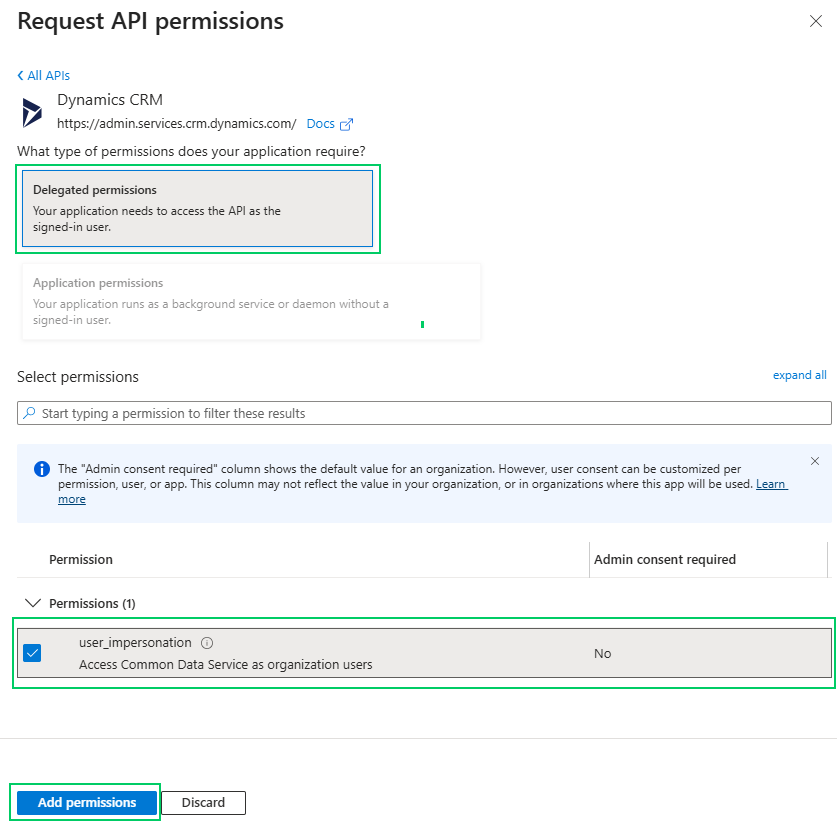
Choose Delegated permissions and then check **user\_impersonation**, then **click Add permissions**.

<div data-with-frame="true"><figure><img src="https://272130504-files.gitbook.io/~/files/v0/b/gitbook-x-prod.appspot.com/o/spaces%2F-M0QoyqUVI8_HaZ9FOSL%2Fuploads%2FL3CyOfnbgpLjz0a9f8WD%2F26.png?alt=media&#x26;token=296212ac-7597-432d-b00c-6b52c3a230d0" alt=""><figcaption></figcaption></figure></div>

Click **Grant admin consent** to apply the permission for the tenant. This ensures the app can call Dynamics CRM APIs as the signed-in user.

<div data-with-frame="true"><figure><img src="https://272130504-files.gitbook.io/~/files/v0/b/gitbook-x-prod.appspot.com/o/spaces%2F-M0QoyqUVI8_HaZ9FOSL%2Fuploads%2FMLYH5fTbYRy5CwBy1j42%2F27.png?alt=media&#x26;token=20902083-c058-40c4-acf3-d6228d7394c1" alt=""><figcaption></figcaption></figure></div>

### **Create a Client Secret (d365-client-secret)**

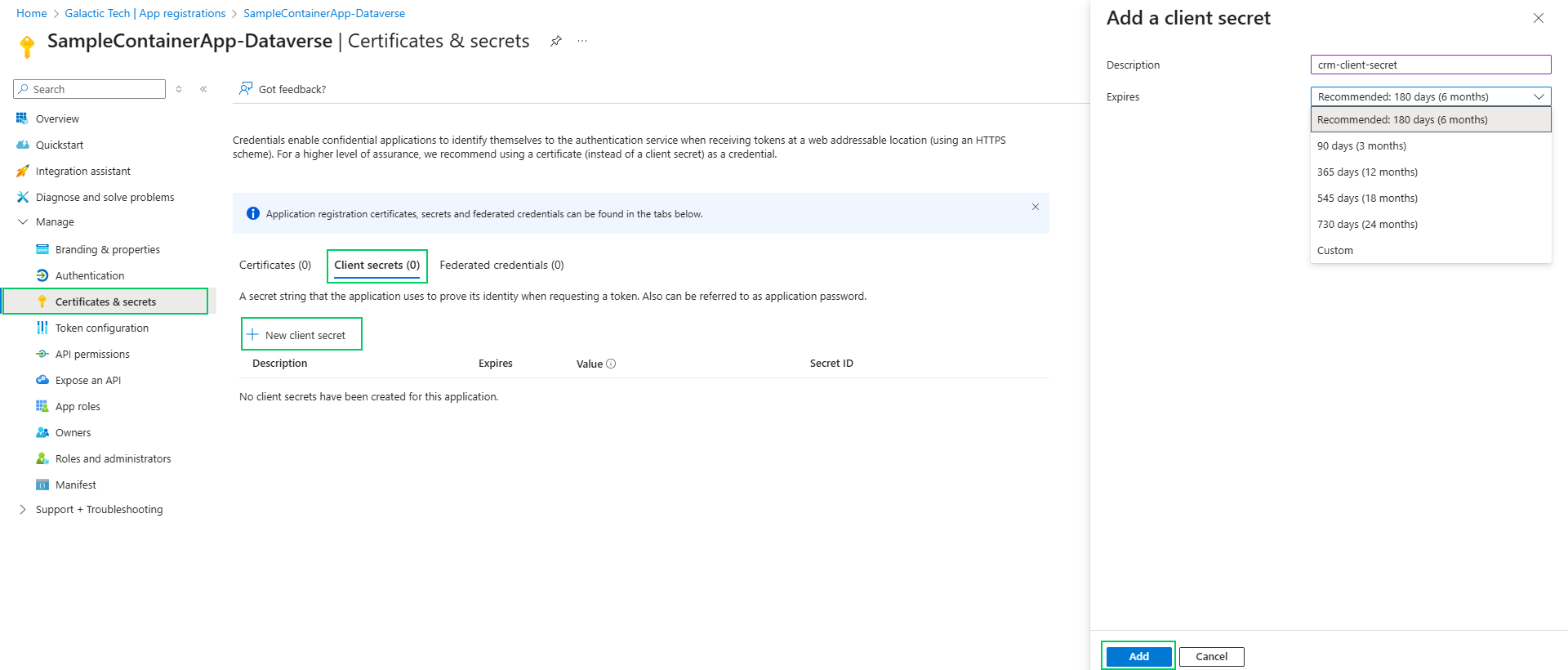
In the app registration, go to **Manage → Certificates & secrets → New client secret**. Create a new secret and optionally set its expiry. Click Add.

<div data-with-frame="true"><figure><img src="https://272130504-files.gitbook.io/~/files/v0/b/gitbook-x-prod.appspot.com/o/spaces%2F-M0QoyqUVI8_HaZ9FOSL%2Fuploads%2Fk4gkTM9y4L7OMosnQZm2%2F28.png?alt=media&#x26;token=00f16c1e-5ddd-44d1-bc1c-3c1be55d1cb9" alt=""><figcaption></figcaption></figure></div>

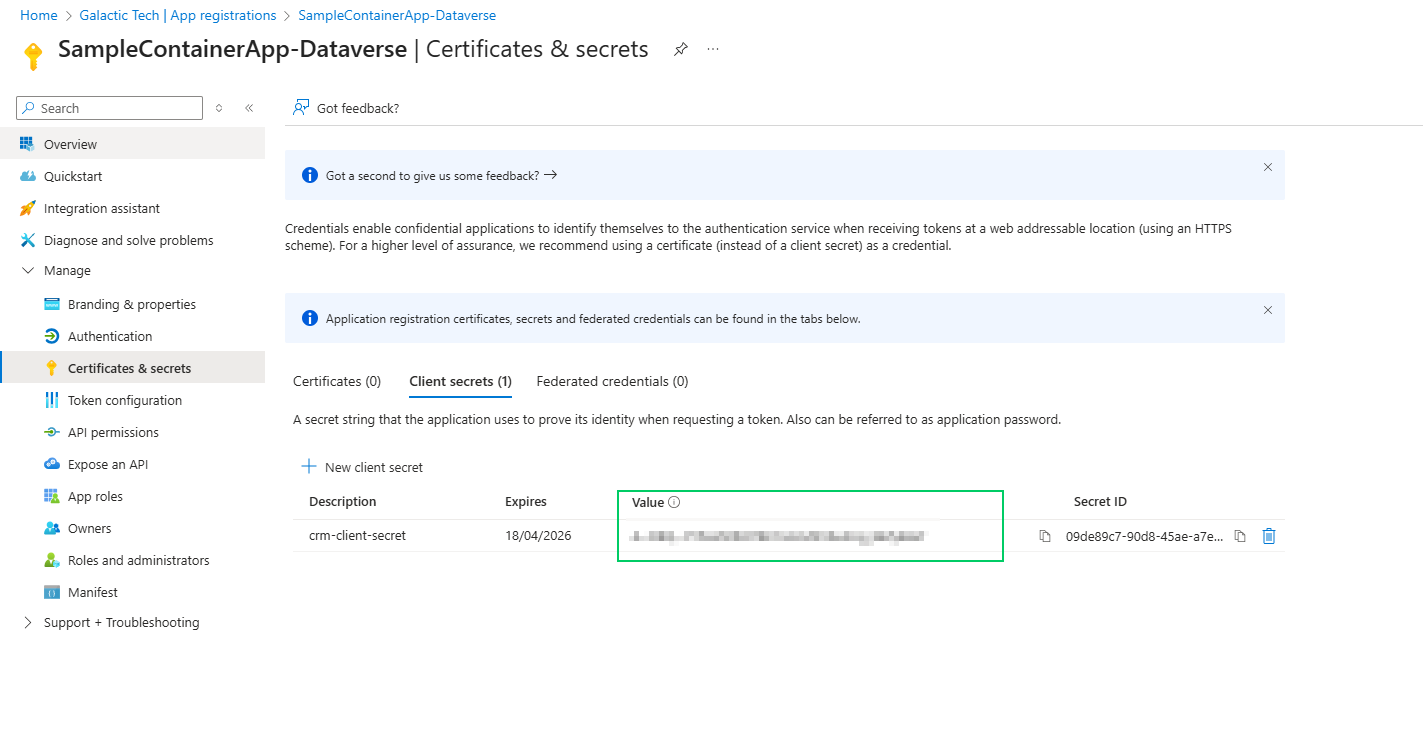
**Immediately copy the secret value** — this value is shown only once. This copied value is the d365-client-secret you will add to the Container App secrets. **If you leave the page, you cannot retrieve this value later.**

<div data-with-frame="true"><figure><img src="https://272130504-files.gitbook.io/~/files/v0/b/gitbook-x-prod.appspot.com/o/spaces%2F-M0QoyqUVI8_HaZ9FOSL%2Fuploads%2F3BYxbci2nKKFH7iljGmc%2F29.png?alt=media&#x26;token=ab3c8d67-c8bc-46f4-97a7-178fa2988707" alt=""><figcaption></figcaption></figure></div>

{% hint style="success" %}
For any queries, reach out to us at <crm@inogic.com>
{% endhint %}


---

# Agent Instructions: Querying This Documentation

If you need additional information that is not directly available in this page, you can query the documentation dynamically by asking a question.

Perform an HTTP GET request on the current page URL with the `ask` query parameter:

```
GET https://docs.inogic.com/predict4dynamics/configuration/configure-application-user.md?ask=<question>
```

The question should be specific, self-contained, and written in natural language.
The response will contain a direct answer to the question and relevant excerpts and sources from the documentation.

Use this mechanism when the answer is not explicitly present in the current page, you need clarification or additional context, or you want to retrieve related documentation sections.