> For the complete documentation index, see [llms.txt](https://docs.inogic.com/llms.txt). Markdown versions of documentation pages are available by appending `.md` to page URLs; this page is available as [Markdown](https://docs.inogic.com/predict4dynamics/configuration/configure-inowiz-prediction-builder.md).
# Configure InoWiz Prediction Builder
To configure the Predict4Dynamics follow steps below:
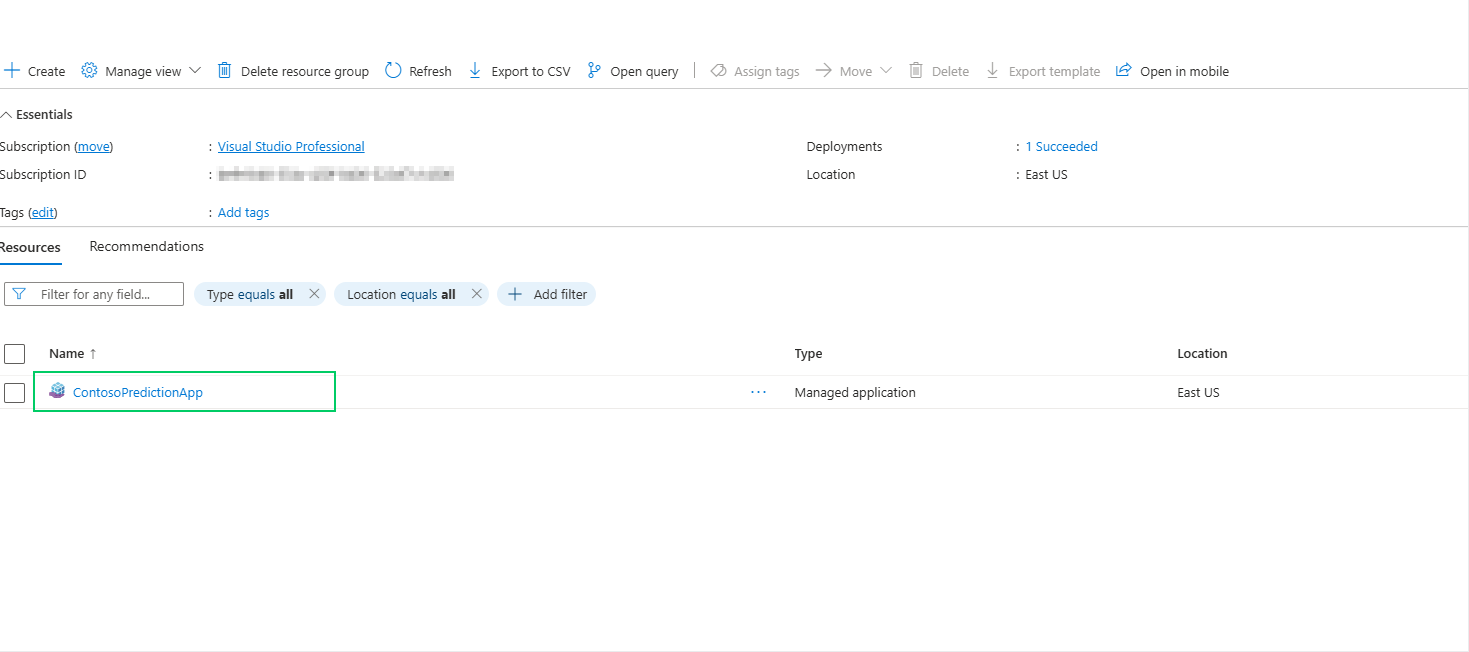
After successful deployment, open the Managed Application
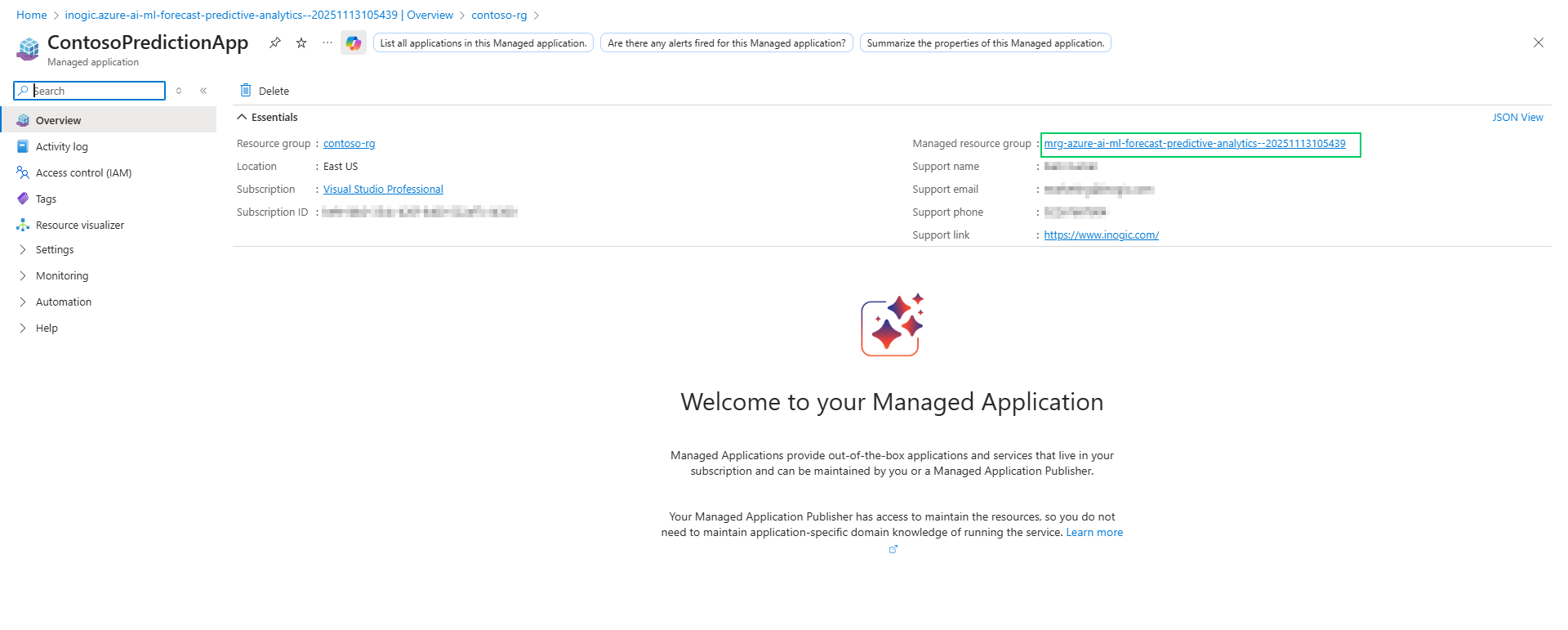
### **Open the Managed Resource Group**
* Inside the managed application, go to the Managed Resource Group. This resource group contains all the resources that were created by the managed application.
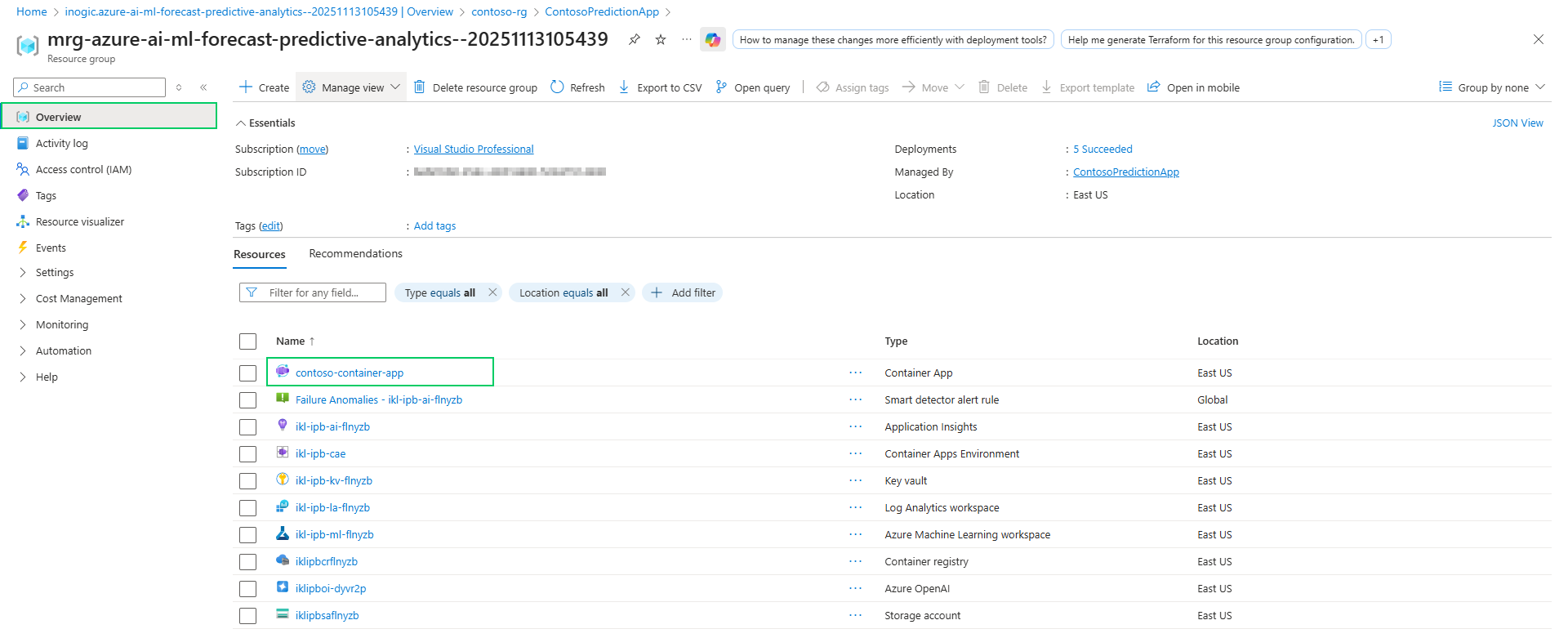
On the managed resource group overview you can:
* View all created resources directly, or
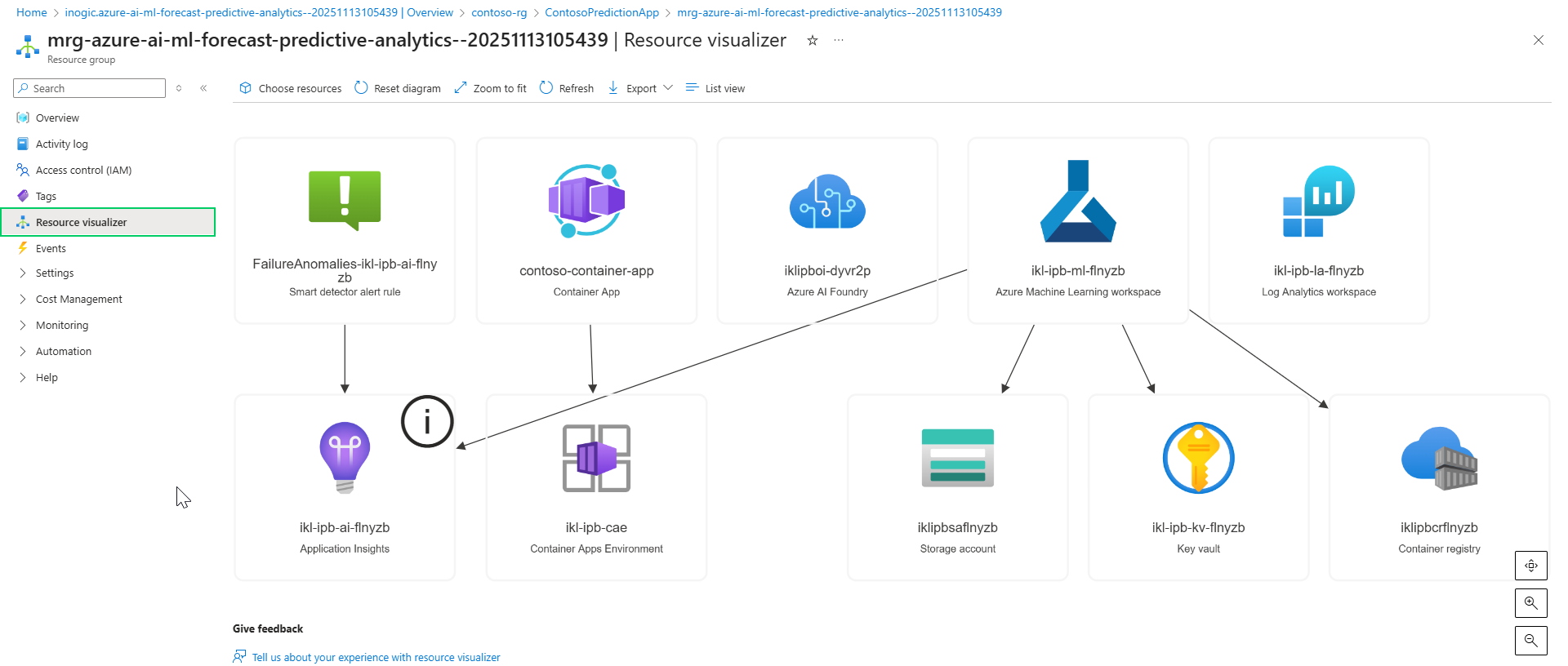
* Click Resource Visualizer to get a visual map of the created resources.
### Locate the Container App and Copy the Endpoint URL
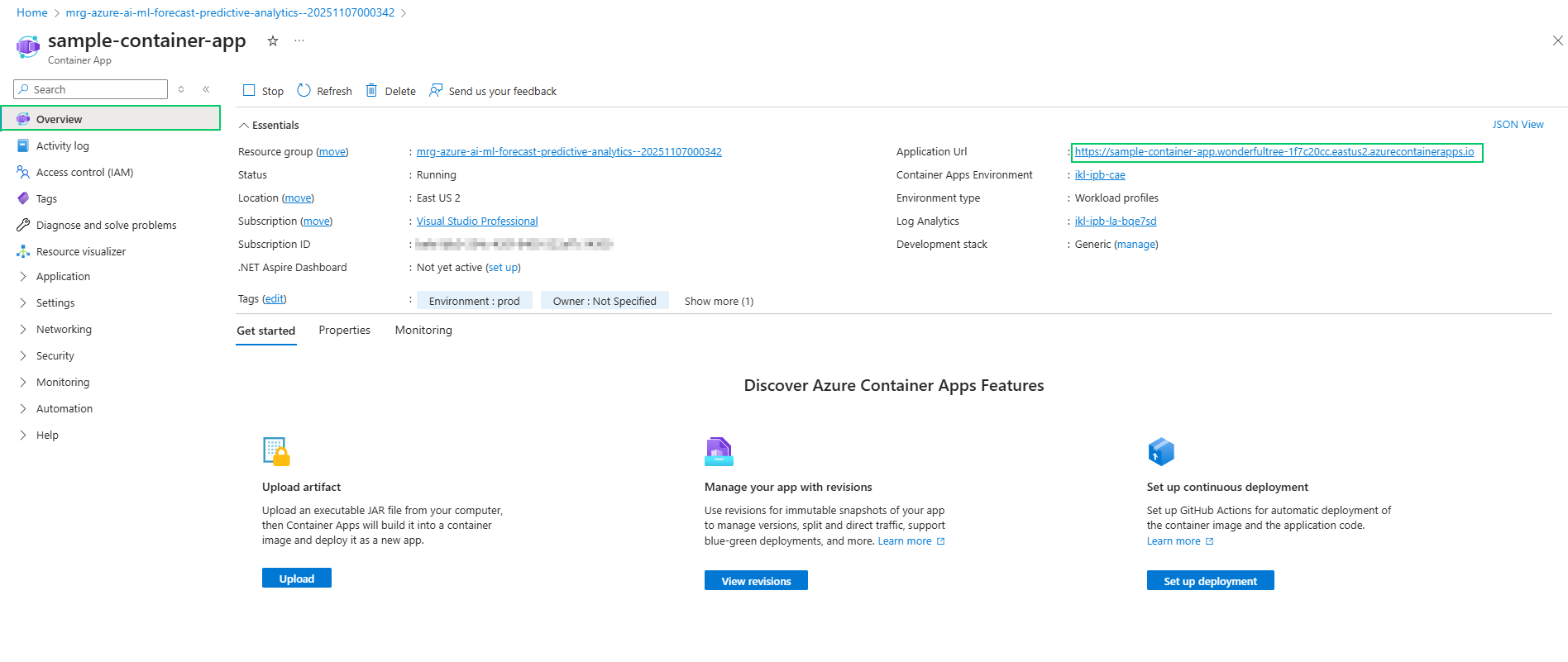
From the list of resources, open the Container App (example name: contoso-container-app).
Inside the Container App, copy the **Application URL** — this is the **endpoint URL that** you will use on the Predict4Dynamics home page to connect the app to the container. **Save this URL** for later.
{% hint style="info" %}
**Note:** The Container App URL contains the container app name you set during deployment; choose that name carefully earlier.
{% endhint %}
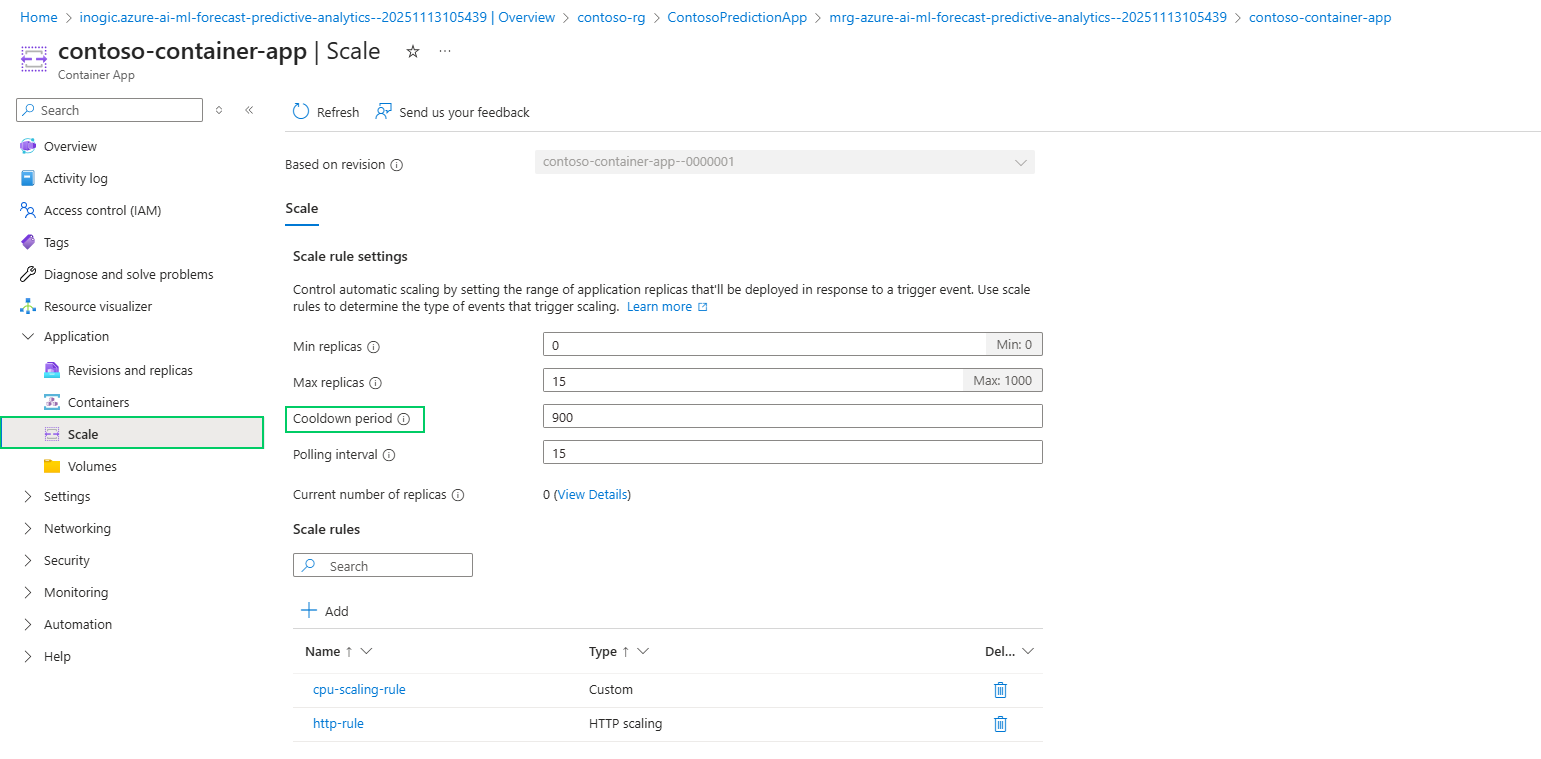
### **Container App: Cool-Down Period (Optional Adjustment)**
* (Optional) In the Container App settings, you can change the cool-down period. By default, it’s 900 seconds.
* The cool-down period is the idle timeout after which the container app becomes idle to save costs; a request sent after this idle period may require a few seconds for the app to spin up. Adjust this value based on usage and cost tradeoffs.
### **Add Dataverse (D365) Credentials to Container App Secrets**
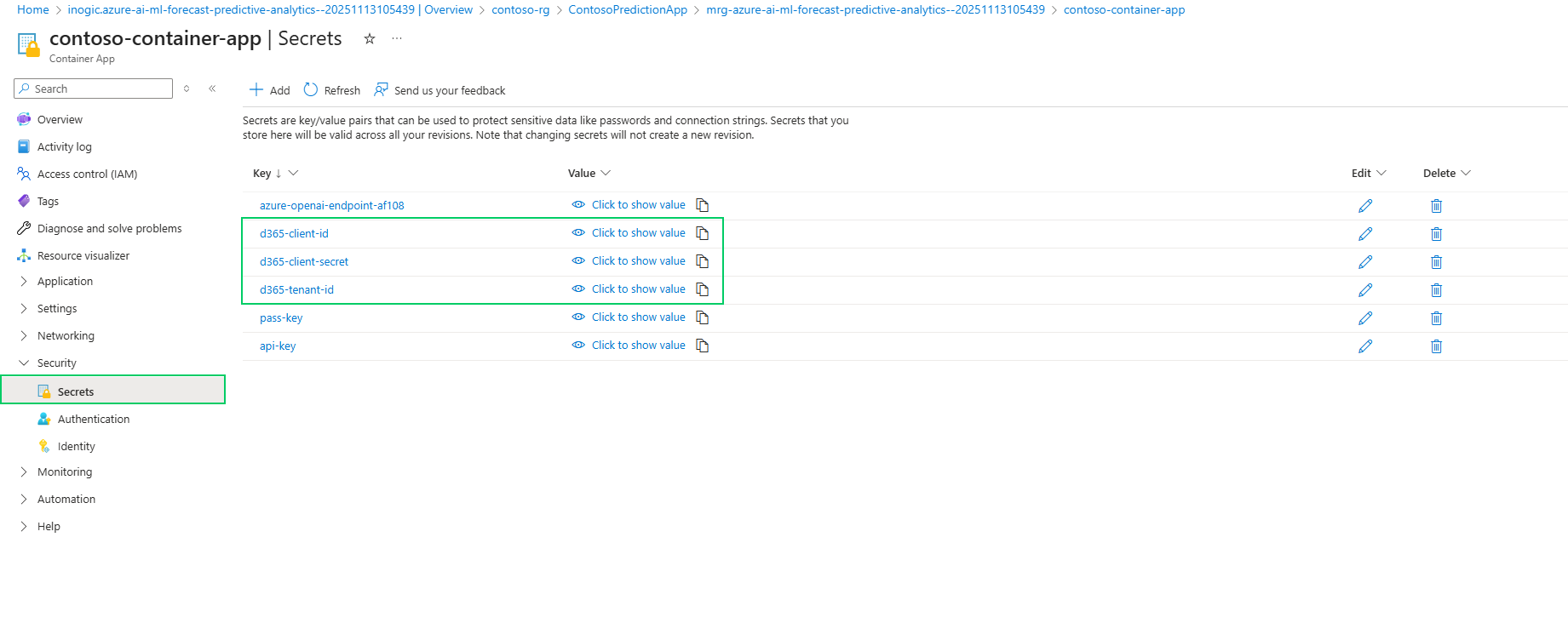
* In the Container App navigate to Security → Secrets. You must add values for the following three secret keys:
* d365-client-id
* d365-client-secret
* d365-tenant-id
These values connect the container app to your Dataverse (Dynamics 365) environment.
[Click here ](/predict4dynamics/configuration/configure-application-user.md)to configure Application User.
### **Fill Container App Secrets with the Three Keys**
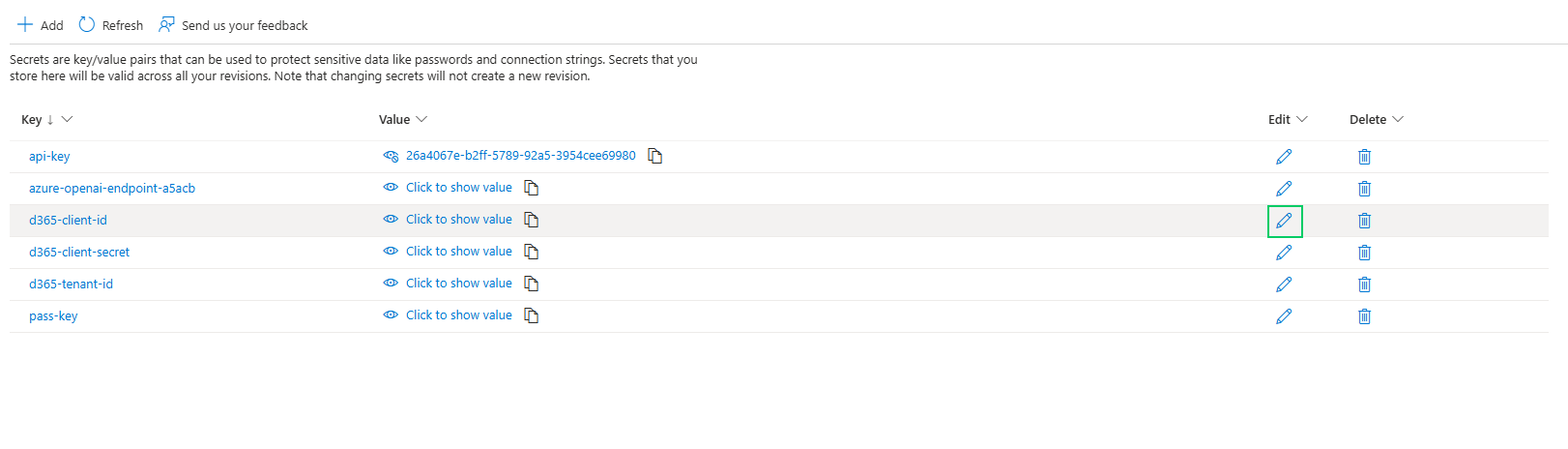
Return to the **Container App → Security → Secrets**. For each secret key:
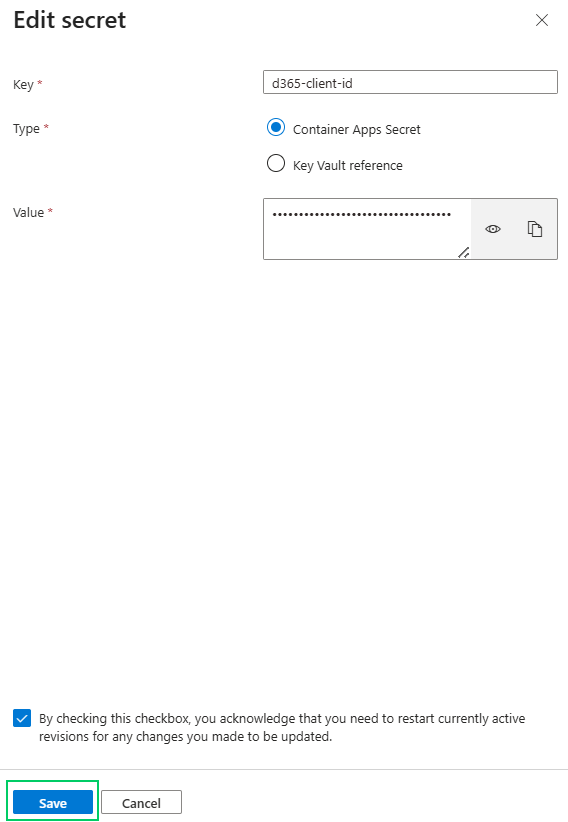
Click the secret (e.g., d365-client-id) → click the Edit icon.
Paste the corresponding value (client ID/tenant ID/client secret) → check the confirmation box → Save. Repeat for d365-client-secret and d365-tenant-id.
### **Copy the Container App API Key**
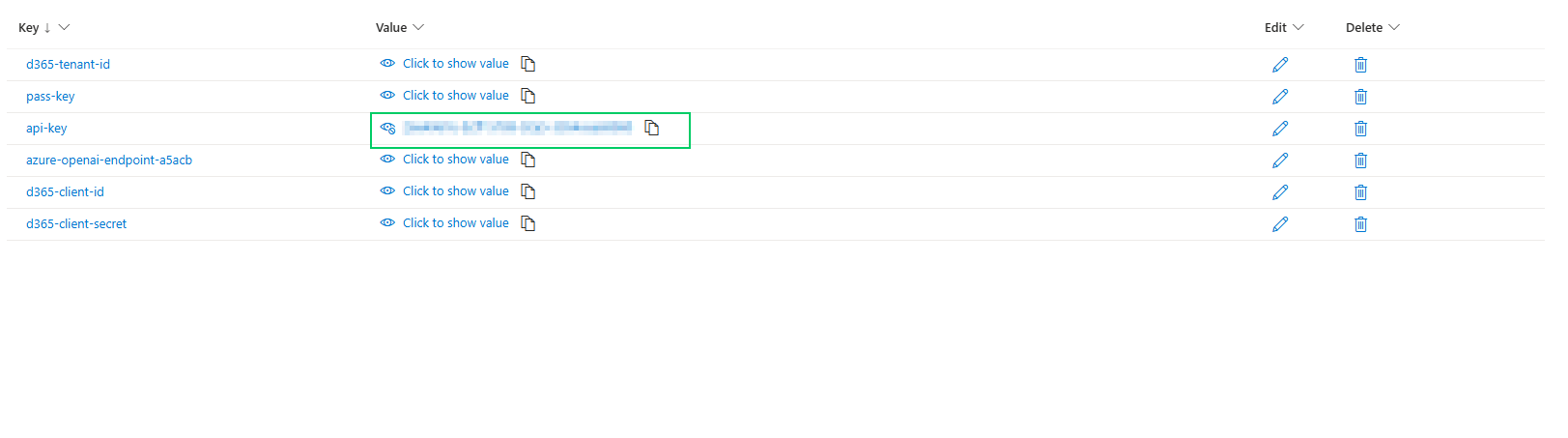
In the Container App secrets list, copy the api-key value. This API key is the secured authentication key used by Predict4Dynamics to talk to the container app. Save this key
### **Validate Endpoint & API Key in Predict4Dynamics App**
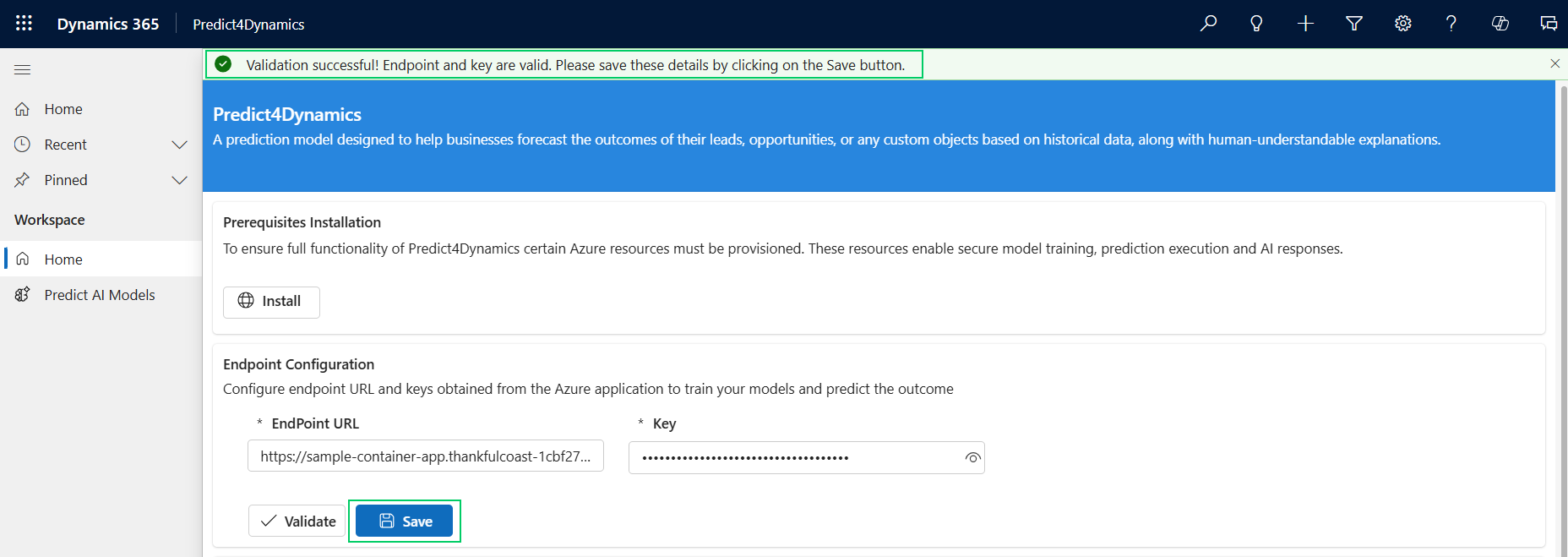
Open the Predict4Dynamics home page. Enter the **Endpoint URL** (container app URL) and the API Key you copied, then click Validate.
On successful validation you will receive a success notification on the form — then click Save to persist the connection.
{% hint style="info" %}
**Tip:** If validation fails, re-check that the container app URL is correct and that the API key copied matches exactly; also ensure the container app is running and not idled (cool-down) when testing.
{% endhint %}
### **Troubleshooting (Common Issues)**
* Insufficient subscription / missing permissions: Confirm the Azure subscription is active and you have permissions to create resources (Owner or Contributor role).
* Model/token selection errors: Check that the selected model and token are available in your Azure tenant; if not, choose a supported model/token or provision required resources.
* Managed Resource Group: Use the resource visualizer to confirm all resources were created correctly.
* Cool-Down Period: Default 900s — adjust if frequent cold starts are a problem.
* App Registration Secret Visibility: The client secret value is available only once at creation. Copy and securely store it immediately.
* Tenant Differences: The Azure AD tenant that hosts Dataverse may differ from the tenant where the container app is deployed — ensure you register the app in the correct tenant.
* Permission Scope: Ensure user\_impersonation permission for Dynamics CRM is added and admin consent granted; otherwise, API calls will fail.
* Validation Failures: If Predict4Dynamics validation fails during the endpoint/API key step, check the container app running state, the secrets accuracy, and that the container app endpoint is reachable from your network.
{% hint style="success" %}
For any queries, reach out to us at
{% endhint %}