> For the complete documentation index, see [llms.txt](https://docs.inogic.com/llms.txt). Markdown versions of documentation pages are available by appending `.md` to page URLs; this page is available as [Markdown](https://docs.inogic.com/predict4dynamics/installation/installation-of-inowiz-prediction-builder.md).
# Installation of InoWiz Prediction Builder
To install InoWiz Prediction Builder follow the below steps:
### **Download the InoWiz Prediction Builder (Azure Managed Application)**
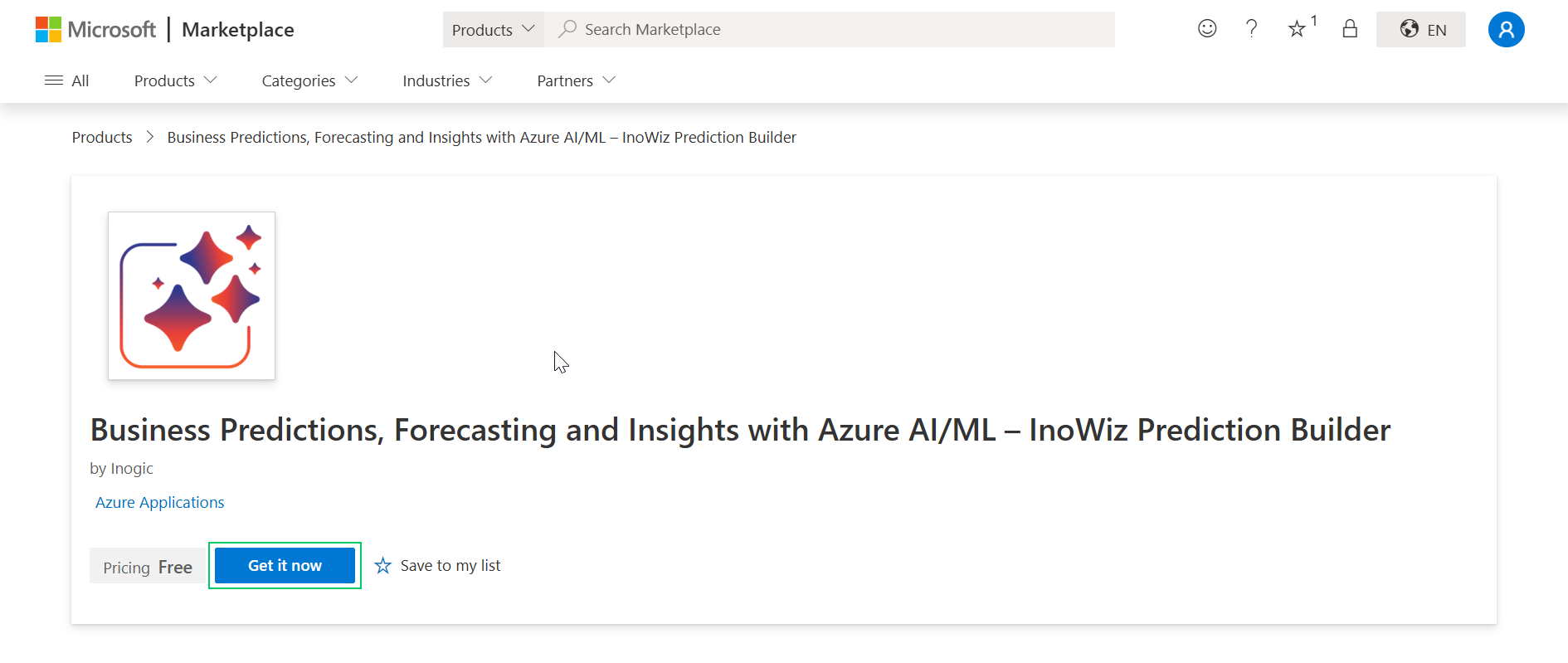
* Once you click on Install it will navigate you to the InoWiz Prediction Builder page, click Get it now to begin the deployment process.
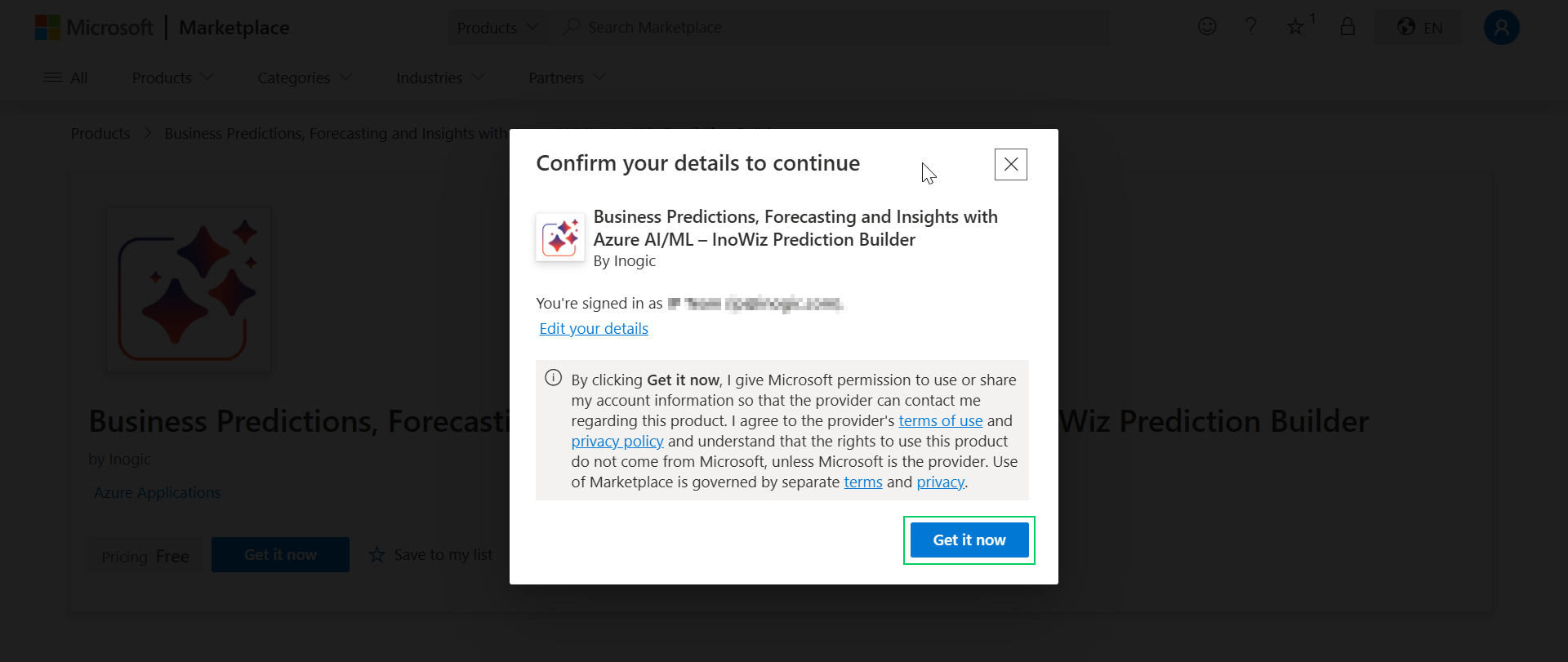
* A confirmation prompt appears — click Get it now again to confirm.
### **Select Subscription and Create**
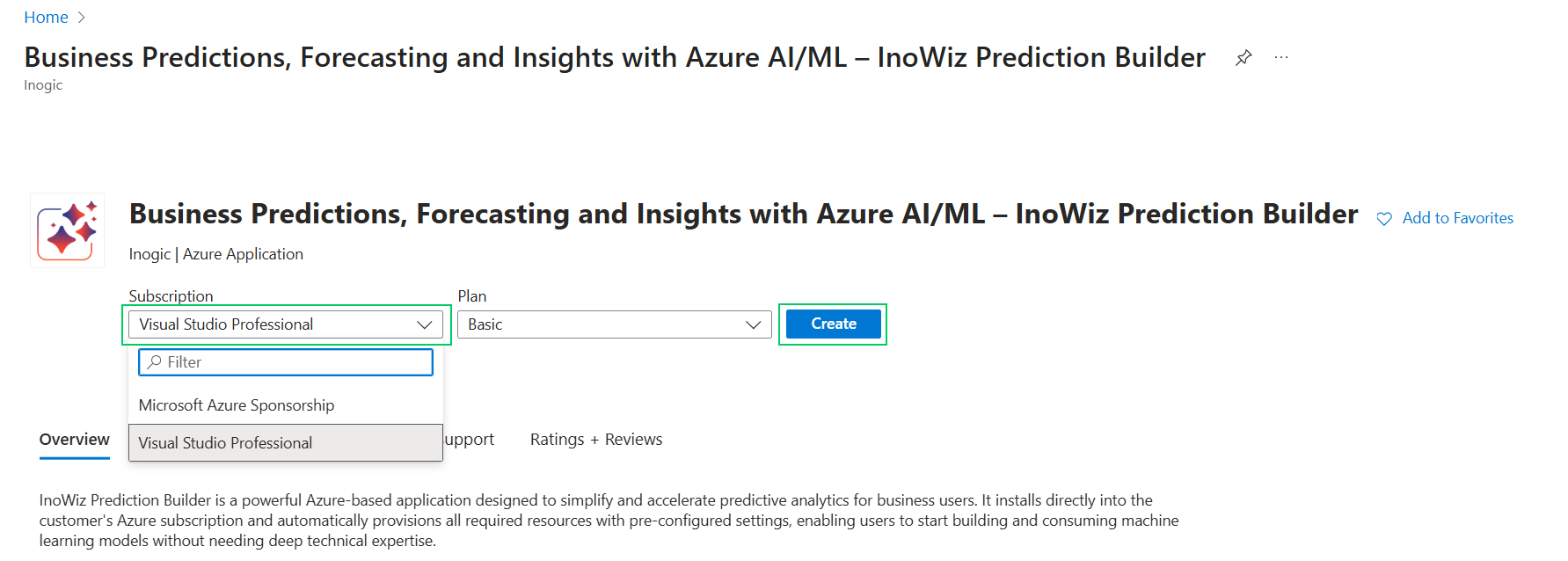
* Select your active Azure subscription from the subscription dropdown. (You must have an active subscription to proceed.)
* Click Create to continue to the deployment configuration UI.
### **Basics Tab — Resource Group & Names**
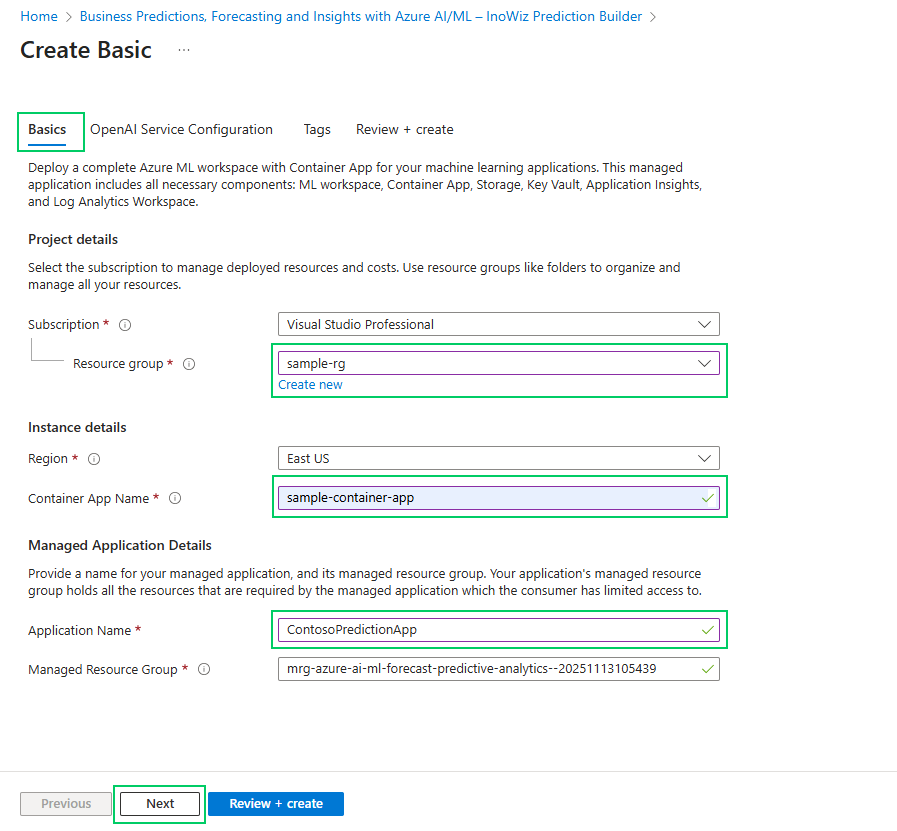
* Create a new Resource Group OR select an existing Resource Group.
* Important: If you select an existing resource group, it must be empty. If it contains resources, create a new resource group instead.
* Enter the Container App name and Managed Application name.
{% hint style="info" %}
**Note:** The Container App name will appear in the URL of the created container app — choose it carefully.
{% endhint %}
### **OpenAI Service Configuration Tab**
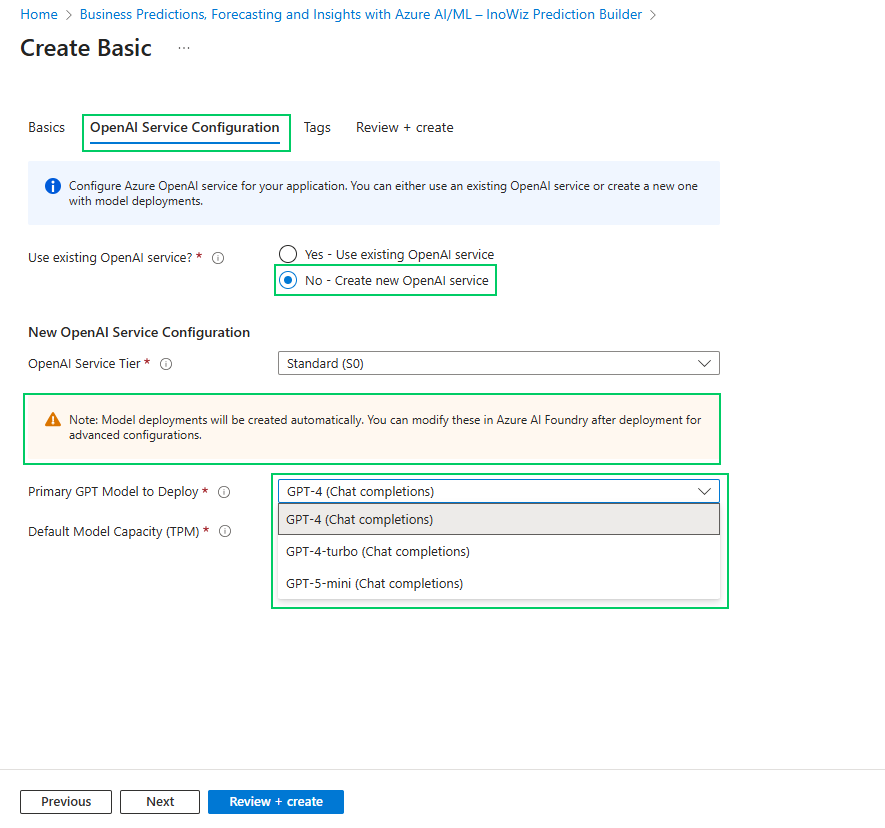
Move to the Open AI service configuration tab. You will be prompted to choose an option (Yes / No).
**If you select Yes:**
* Assuming you already have existing Azure Open AI service with the deployed model\
(note the model should be of type chat completion)
* After successful deployment of the InoWiz Prediction Builder, open the container apps.
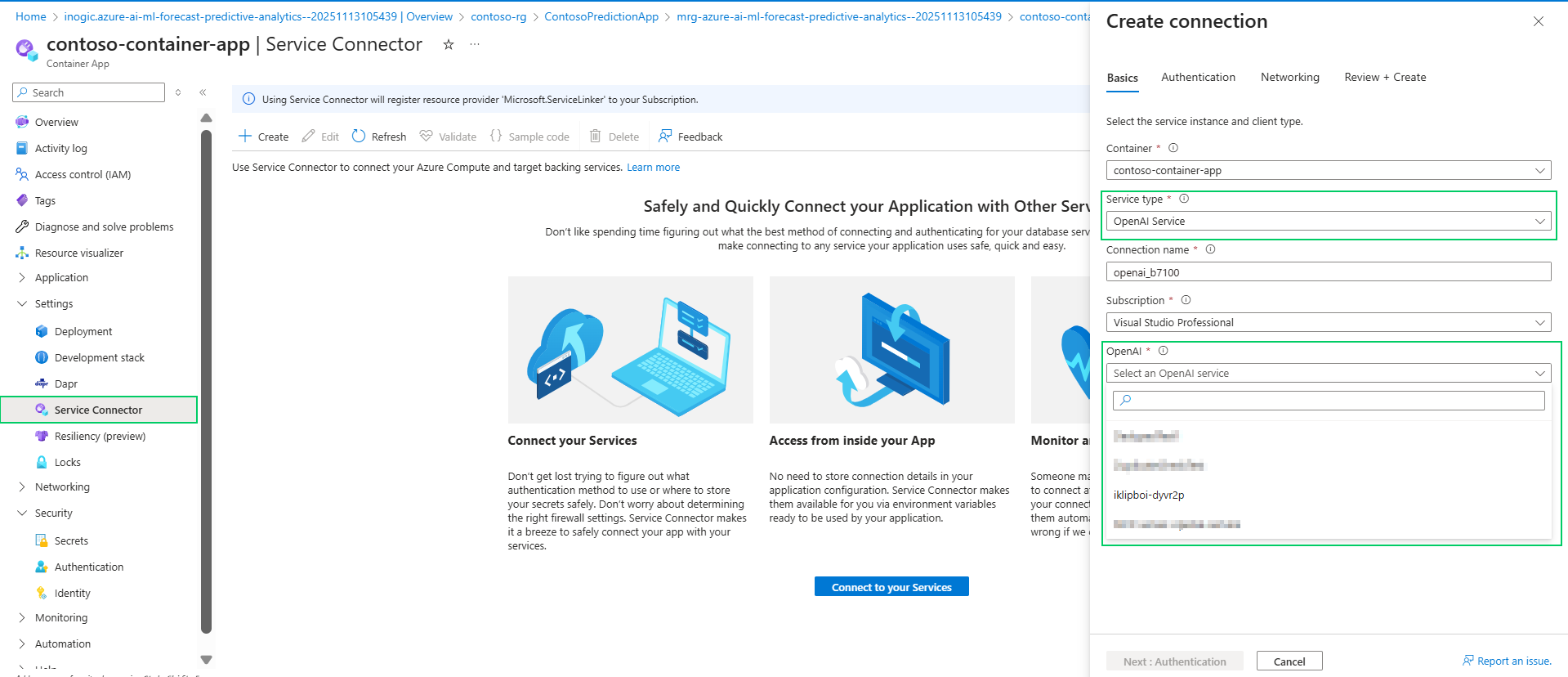
* Go to the settings > service connector, click on create in the basics tab > and keep the container the default selected one.
* Service type select OpenAI service keeps the connection name as is don’t make any changes there
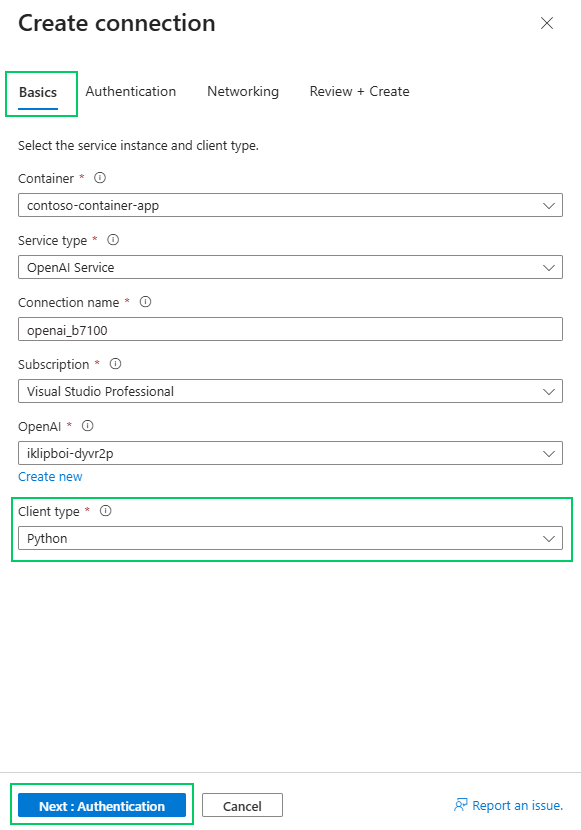
* In the OpenAI dropdown, all your existing Azure OpenAI services will be listed. If you have an existing service, it will appear in that drop-down, so select it from there.
After that, select the client type as python and then click next.
Keep default settings for the Authentication & Networking tab.
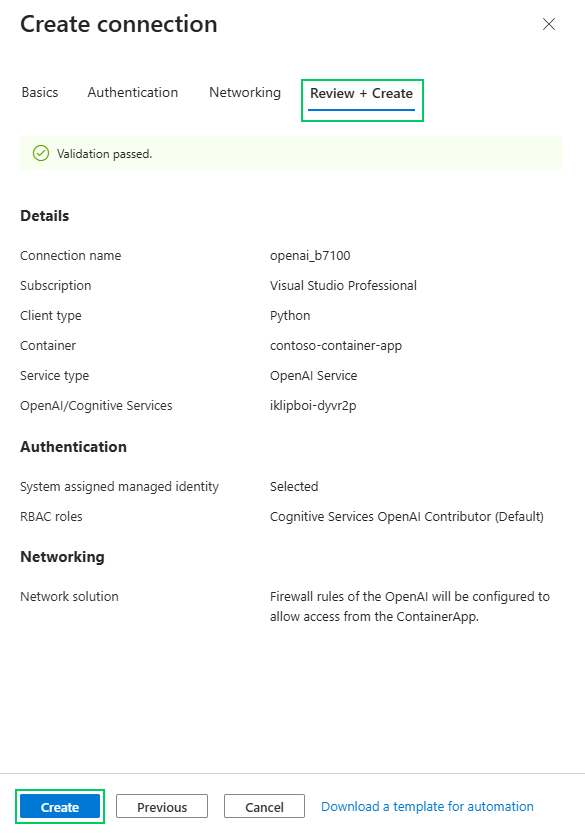
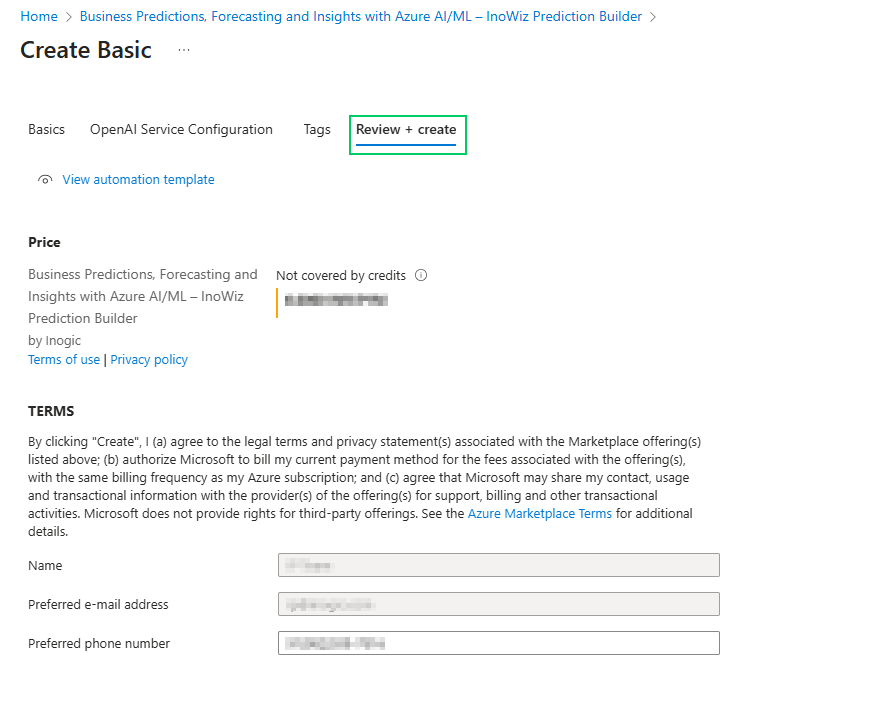
Navigate to the **Review + Create tab**, check all the filled details and settings, and click on the create button. This will deploy the existing Azure OpenAI service to the container app.
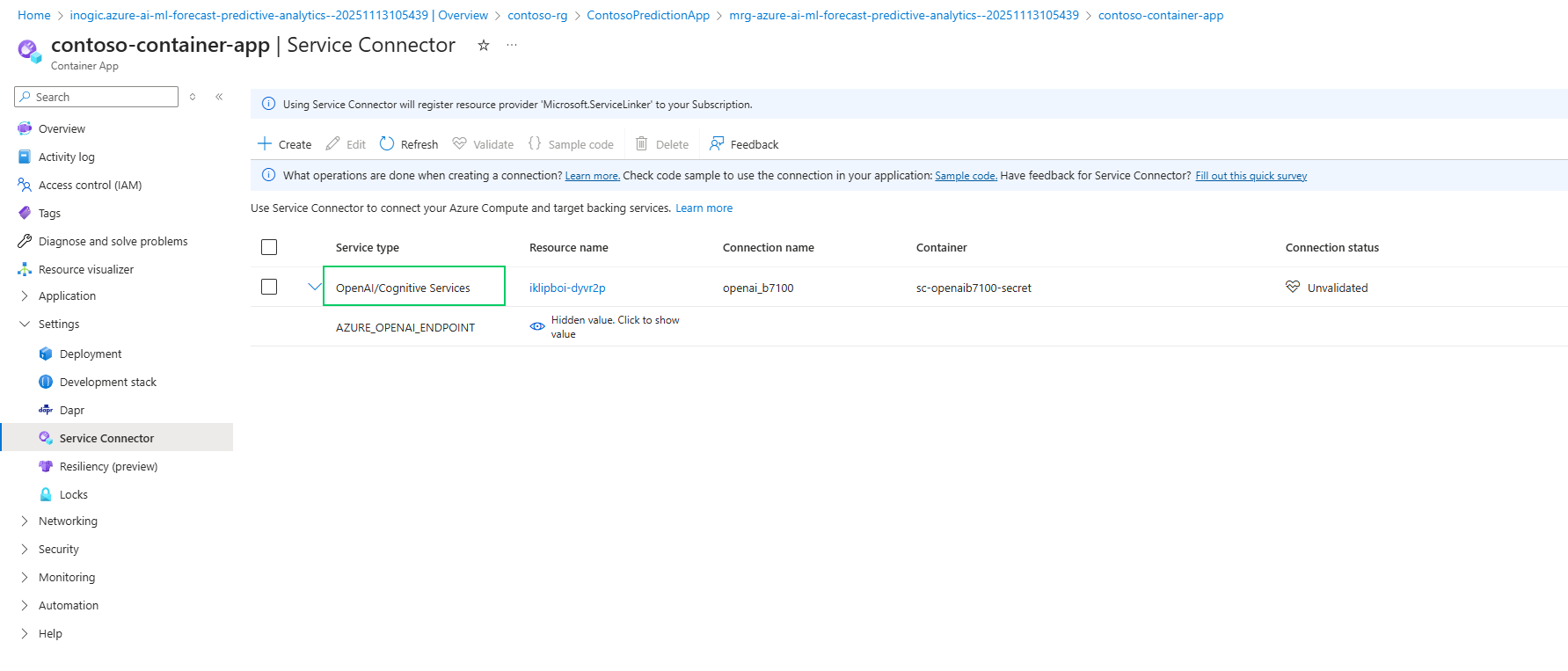
After successful deployment, the Azure OpenAI service is now shown in the container apps **Settings > Service Connector.**
Now, with the help of this connection, the container app can connect to the Azure OpenAI service.
**If you select No:**
* The InoWiz Prediction Builder will create an Azure AI service for you and deploy the model into that service automatically.
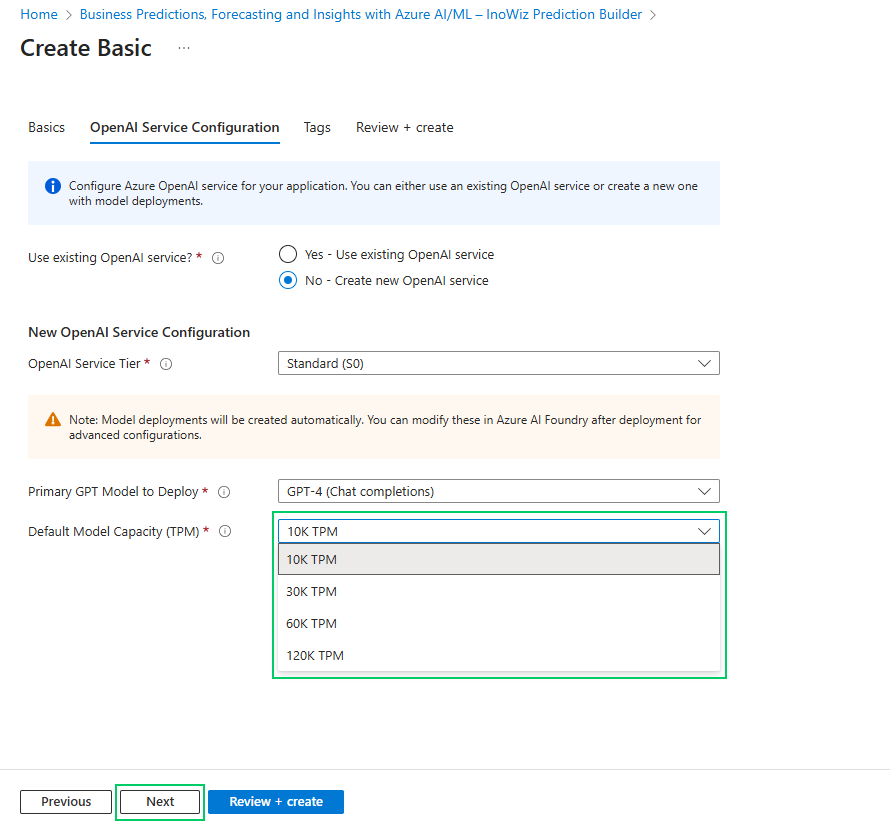
* From the dropdown, select the model you want to deploy and select/set the token for that model.
* Set the token value based on your requirements and the tokens available in your Azure subscription. (Ensure you have sufficient tokens/quota for the chosen model.)
* Click Next to proceed.
### **Finalize Deployment**
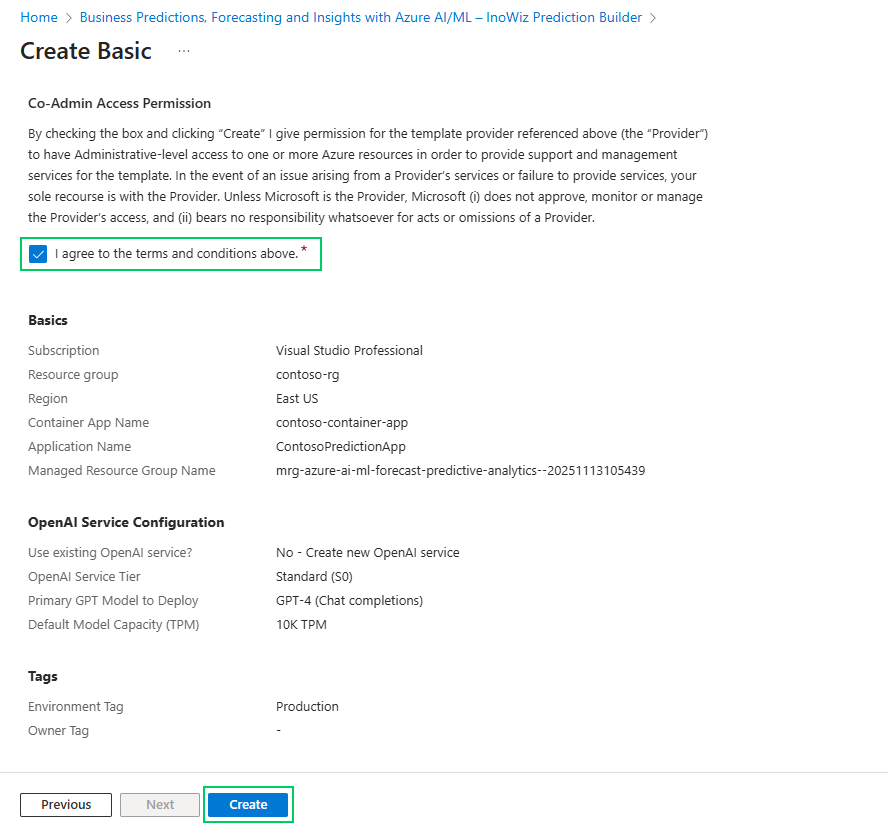
* Review all configuration selections (subscription, resource group, container app name, OpenAI configuration, model and token, environment, owner).
* Complete the deployment (click **Create / Deploy** as applicable in the Azure UI).
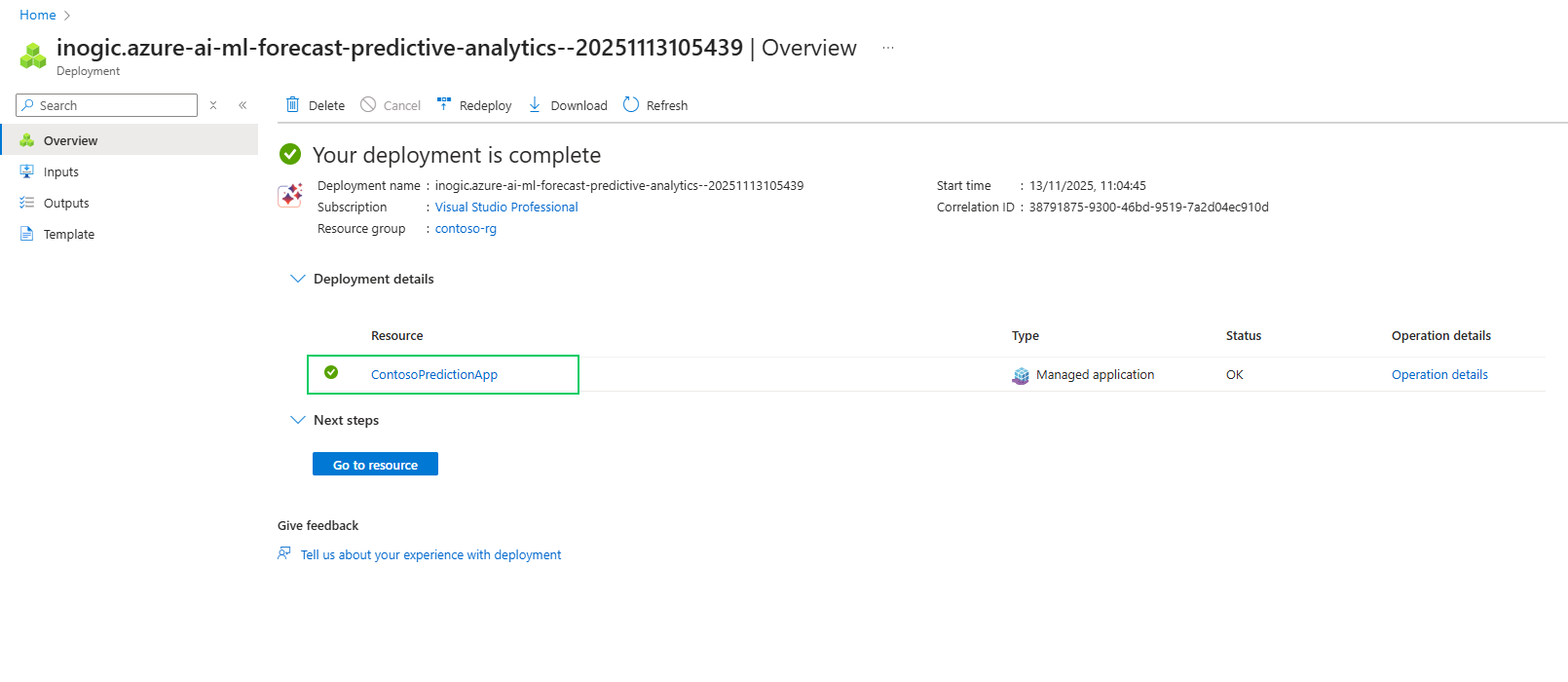
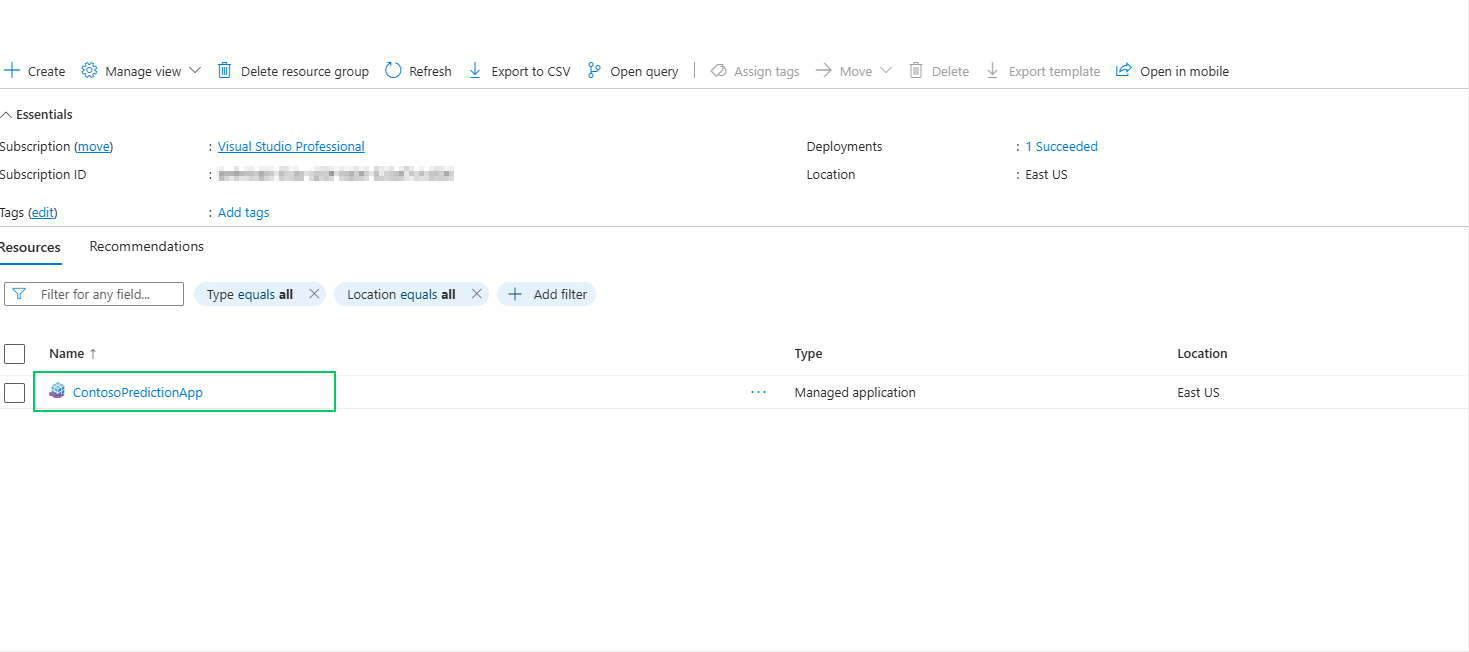
This will going to create a managed application in the selected Azure subscription. After successful deployment user must open the managed application.
[Click here](/predict4dynamics/configuration/configure-inowiz-prediction-builder.md) to configure the InoWiz Prediction builder.
{% hint style="success" %}
For any queries, reach out to us at
{% endhint %}