> For the complete documentation index, see [llms.txt](https://docs.inogic.com/llms.txt). Markdown versions of documentation pages are available by appending `.md` to page URLs; this page is available as [Markdown](https://docs.inogic.com/click2export/features/report-template-collection.md).
# Report Template Collection
Click2Export now allows you to group multiple reports/templates into a report template collection and export them together.\
\
Here are the steps to configure and use this feature:
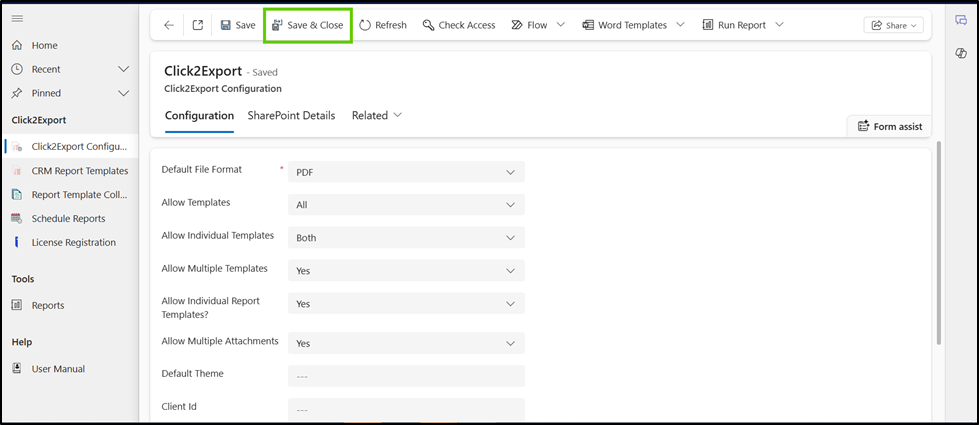
**Step 1: Enable Multiple Attachments in Configuration**
1. Go to **Click2Export → Configuration.**
2. In the **Allow Multiple Attachments** field, select **Yes.**
3. **Save & Close** the configuration.
**Step 2: Create a Report Template Collection**
1. Navigate to the **Report Template Collection** entity.
2. Select **+ New** on the ribbon.
3. Enter the required details:
* Name of the collection.
* Related Template Type: choose one of the following:
**Per Record Based** (exports reports/templates for a single record)
**View-Based** (exports for multiple records from a view).
4. Configure the **Email Configuration** section.
5. **Save** the collection.
**Step 3: Export a Report Template Collection**
1. Open a record or view and click Open **Click2Export.**
2. Under the **Report Templates** section, select the desired collection (e.g., *Account View Collection*).
3. In the **Action** section, select the **Attach to a new email** action.
4. Click **OK**.
5. A pop-up will confirm the export success. Click **OK** again.
6. The exported files will be available as attachments (see screenshots below).
**Step 4: Schedule a Report Collection**
1. Navigate to the **Schedule Reports** entity.
2. Select + New to create a schedule. A New Schedule Reports form will be opened.
3. In the Report Template Collection field, select the desired collection (e.g., *Account Reports*)
{% hint style="info" %}
Note: Once you select a Report Template Collection, the CRM Report Template field will be disabled.
{% endhint %}
4. Configure scheduling details (frequency, time, recipients, actions).
5. Save the **schedule**.
6. All exported reports will be generated automatically as per the schedule (see screenshots below).
{% hint style="info" %}
Note: For automation, you can add the desired report to the Report Template Collection field.
{% endhint %}